Fix My Bluetooth Speaker
Wireless Sound, Fixed Fast!
0%
MODE

A malfunctioning Bluetooth speaker can disrupt your music, calls, and media experience. Knowing how to fix my bluetooth speaker is essential to restore clear sound, resolve pairing issues, and protect your device from further damage.
From crackling audio to sudden volume drops, understanding the causes and troubleshooting steps helps you address problems safely and efficiently.
Whether it’s a minor software glitch or a hardware concern, taking timely action ensures your speaker performs reliably, delivering consistent, high-quality audio for all your entertainment needs.
Why Bluetooth Speakers Stop Working

A Bluetooth speaker can fail for different reasons. Sometimes it’s a minor glitch you can fix quickly, while other times you’ll need to repair my bluetooth speaker through a professional service. Understanding the root cause is the first step.
Speaker Sound Distortion & Muffling
If your audio sounds weak, crackly, or muffled, the problem could be loose internal wiring, water damage, or dust inside the speaker. In many cases, simple resets or cleaning can help, but recurring distortion usually means it’s time to say fix my bluetooth speaker sound with expert repair.
Not Charging or Draining Fast
A failing battery or damaged charging port is one of the most common hardware issues. If your speaker won’t hold a charge or drains within minutes, the battery may need replacement.
Connection Drops & Pairing Errors
Frequent disconnects, failure to pair, or your device constantly “forgetting” the speaker often point to outdated firmware, interference, or internal Bluetooth module faults.
Glitch or Hardware Failure?
- Just a Glitch: Quick fixes like re-pairing, restarting, or updating software usually solve temporary issues.
- Hardware Failing: When problems keep coming back (no sound, won’t charge, disconnects mid-song), that’s when you’ll need a professional to repair my bluetooth speaker properly.
Knowing the difference saves time. Instead of endless trial-and-error, you can decide whether it’s a DIY fix or time to book expert help.
What is Fix My Speaker?
Fix My Speaker is a free web tool that clears dust and water from phone and bluetooth speakers. It works by playing special sound frequencies that create quick vibrations.
These vibrations push out fine particles stuck inside the speaker mesh. The process is safe, fast, and requires no tools or disassembly. Since it runs directly from a browser, there is no need for apps or downloads.
It is especially useful after outdoor use or water exposure. With regular use, Fix My Speaker helps restore clear sound, protect delicate parts, and extend the life of your Bluetooth speaker.
Key Features of Fix My Speaker
While our tool addresses minor issues, our full fix my bluetooth speaker service ensures:
- Web-Based Tool: Works directly in any browser. No app download or installation required.
- Safe Dust & Water Removal: Uses specially tuned sound frequencies to vibrate out dust and moisture without damaging delicate parts.
- Bluetooth Compatible: Works with most Bluetooth speakers, as well as phones and laptops with external speakers.
- Fast & Non-Invasive: Quick process, no disassembly or manual cleaning needed.
- Audio Restoration: Helps restore clear sound and full volume by removing particles and water from the speaker mesh.
- Repeatable Use: Can be run multiple times for stubborn dust or trapped water.
- Extends Lifespan: Regular use protects speaker components and avoids costly repairs.
How Fix My Speaker Works for Bluetooth Speakers
Fix My Speaker uses carefully designed sound frequencies to restore clarity in Bluetooth speakers. When you play the tool, it generates rapid vibrations inside the speaker chamber. These vibrations shake out dust, water droplets, or other debris trapped in the speaker mesh.
The technology works on the same principle as water ejection features in smart devices. The sound waves resonate with the speaker’s internal components, safely pushing out particles without disassembly.
Since it runs directly from a web browser, no app or installation is needed. Regular use helps maintain sound quality, prevents long-term damage, and extends the life of your Bluetooth speaker.
How to Use Fix My Speaker to Fix a Bluetooth Speaker?

Unlike wiping or shaking, which risks damage, our tool uses controlled audio frequencies to solve problems safely. It creates sound-driven vibrations that push out dirt or trapped droplets from deep inside the speaker grill.
Step 1: Open Fix My Speakers Website
Visit FixMySpeakers.com on any browser. The tool works instantly online, so there is no installation or app setup required.
Step 2: Connect to Your Bluetooth Speaker
Pair your phone or laptop with the Bluetooth speaker. This ensures that when the tool plays tones, they vibrate through your speaker instead of your device’s built-in one.
Step 3: Activate the Blower Tone
Press the 💨💦 button. The site will emit a specially tuned audio frequency. This tone mimics the Apple Watch’s water-eject feature but is calibrated for speakers, creating rapid air pressure shifts inside the chamber.
Step 4: Eject Dust or Water
Keep the speaker in an upright position with its mesh facing downward. The vibrations will loosen dust particles and push out moisture droplets. Play the sound for 20–30 seconds at full volume for the best results.
Step 5: Repeat if Needed
If your Bluetooth speaker still sounds muffled, run the tone multiple times. Dust buildup often requires repeated bursts to clear completely.
Step 6: Test the Audio
Play a song or test tone afterward to confirm clarity. If the sound has improved, the speaker mesh is clean. If muffling remains, the issue might be due to deeper hardware blockage.
First Things to Try Before Going for Repairs
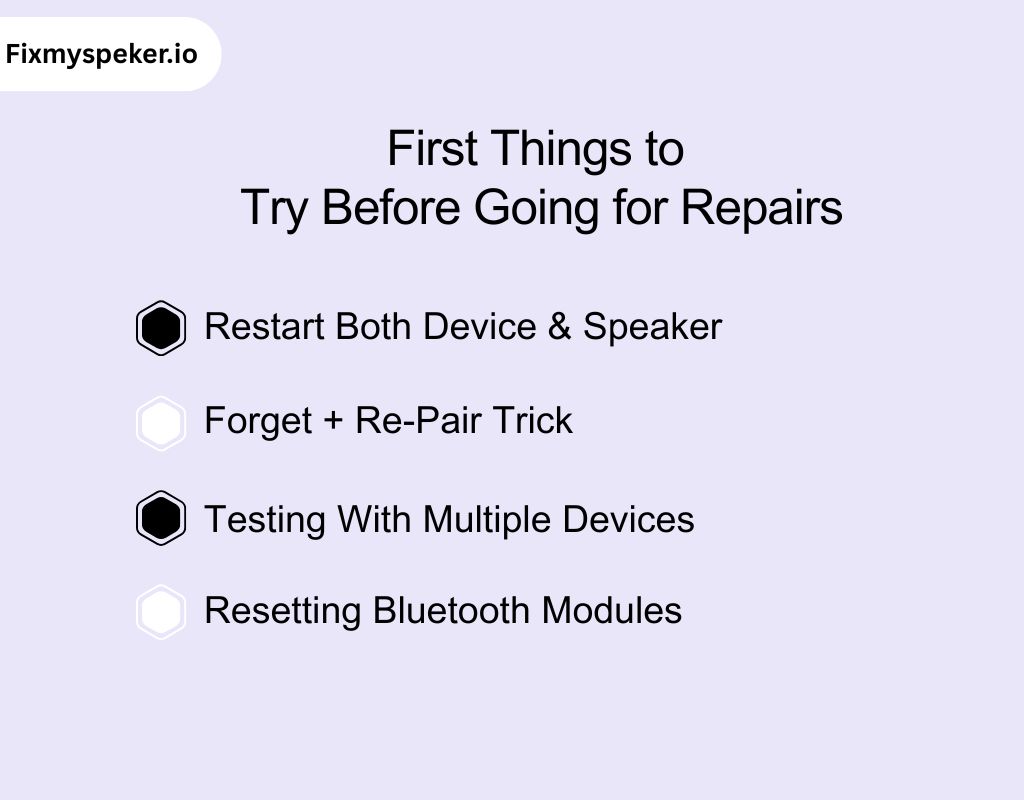
Before rushing to a repair service, there are several simple steps you can try yourself. Often, the solution is just a small tweak away, helping you answer the common question: how do I fix my bluetooth speaker.
Restart Both Device & Speaker
Power off both your Bluetooth speaker and the device you’re pairing it with, wait 10–15 seconds, and then turn them back on.
- Why it works: Temporary glitches or software conflicts often prevent smooth connectivity or sound output.
- Pro tip: For iPhone or Android users, also toggle Airplane Mode for a few seconds before restarting.
- Outcome: Many minor issues, like intermittent sound or pairing errors, are resolved with this simple step.
Forget + Re-Pair Trick
Go to your device’s Bluetooth settings, select your speaker, and choose “Forget This Device” (or equivalent). Then pair the speaker again as if it were new.
- Why it works: Sometimes the saved connection data becomes corrupted, causing your device to fail in recognizing the speaker.
- Pro tip: After re-pairing, play audio from different apps to confirm consistent sound output.
- Outcome: Fixes most common pairing errors and connectivity problems often the first step when asking: how do I fix my bluetooth speaker not working.
Testing With Multiple Devices
Try connecting your speaker to a second phone, tablet, or laptop.
- Why it works: This helps isolate whether the problem is with your speaker or the original device.
- Pro tip: If the speaker works on one device but not another, check Bluetooth version compatibility or software updates on the problematic device.
- Outcome: Quickly identifies whether the speaker needs repair or just device-side troubleshooting.
Resetting Bluetooth Modules
Some devices allow a full Bluetooth or network reset, which clears cached connections and corrupted data.
- Why it works: Residual pairing data can cause repeated disconnections, unresponsive pairing, or sound issues.
- Pro tip: After resetting, re-pair your speaker and test audio in different apps to confirm full functionality.
- Outcome: Often restores stable connectivity and resolves recurring issues without opening the speaker.
Solve Pairing Issues Step by Step
One of the most common problems with Bluetooth speakers is connection failure. Many users ask: how do I fix my bluetooth speaker not pairing. The good news is that pairing issues are often solvable with a few structured steps.
Common Causes
Understanding why your speaker isn’t pairing makes the fix faster:
- Interference: Other Bluetooth devices, Wi-Fi routers, or even microwaves can disrupt signals.
- Multiple Saved Devices: If your speaker is already paired with several devices, it may refuse new connections.
- Outdated Firmware: Speakers or phones with outdated software can struggle to pair correctly.
Step 1: Reconnect From Scratch
- Turn off Bluetooth on all nearby devices.
- Forget the speaker from your current device’s Bluetooth list.
- Power cycle the speaker.
- Enable Bluetooth and pair again as a fresh connection.
Pro tip: Keep the speaker and device within 1–3 feet during the initial pairing attempt for the best success rate.
Step 2: Hidden Pairing Tricks (Brand-Specific)
Some speakers require unique button sequences or long-press methods to enter pairing mode. For example:
- JBL: Hold the Bluetooth button until the LED flashes.
- Bose: Press and hold the Power + Bluetooth button simultaneously.
- Sony: Use a combination of Power + Pairing button to reset connections.
Pro tip: Check the manufacturer’s manual or online guide for your specific model. These hidden tricks often resolve stubborn pairing failures.
Fix My Bluetooth Speaker on Phone
Many users face device-specific issues when trying to connect or get consistent sound from their Bluetooth speakers. Whether you say fix my bluetooth speaker on my phone, or you’re looking for solutions for specific devices, these practical steps will help restore clear audio and stable connections.
Fix My Bluetooth Speaker on iPhone Devices – Clear Audio & Stable Connection
- Toggle Audio Output in Control Center: Sometimes your iPhone routes sound to a different device like AirPods or internal speakers. Swipe into the Control Center, select your Bluetooth speaker, and ensure audio is correctly directed.
- iOS Bluetooth Reset Process: Go to Settings → Bluetooth, forget the speaker, then reset network settings via Settings → General → Reset → Reset Network Settings. This clears old pairing data and resolves many connectivity problems.
- Check for iOS Update Conflicts: Updates occasionally introduce Bluetooth glitches. Ensure your iPhone is running the latest version, and if problems started after an update, try restarting or re-pairing your speaker.
These steps usually solve most iPhone-specific audio and connection problems when you need to fix my bluetooth speaker iphone.
Fix My Bluetooth Speaker on Android Devices – Better Pairing & Sound Quality
- Clear Bluetooth Cache/Data: Android devices store temporary data that can conflict with connections. Go to Settings → Apps → Bluetooth → Storage, then clear cache and data to refresh pairing.
- Safe Mode Test for App Conflicts: Some apps may override audio or interfere with pairing. Boot your phone in safe mode and test your speaker to identify conflicts.
- Toggle Media vs Call Audio: Certain Android devices allow separate audio routing for media and calls. Ensure your Bluetooth speaker is set as the output device for media to avoid muted music or call-only audio issues.
Following these steps helps you fix my bluetooth speaker android, improving both connectivity and sound quality.
Fix My Bluetooth Speaker on Computers & Smart Devices
Bluetooth speakers are handy for more than just phones. Laptops, desktops, and smart devices rely on them too. If you’re wondering how to get yours working again, here’s how to handle issues on Windows 10 and Samsung devices without frustration.
Windows 10 – Quick Fixes for Drivers & Sound
Following these steps usually resolves Windows-specific issues, letting you fix my bluetooth speaker windows 10 without extra tools.
- Update or Reinstall Drivers: Bluetooth problems often come from outdated or corrupted drivers. Open Device Manager → Bluetooth, then update or reinstall your speaker’s driver for a fresh start.
- Set as Default Audio Device: Go to Control Panel → Sound → Playback and make sure your speaker is the selected output. Many “no sound” issues happen because Windows is sending audio somewhere else.
- Reduce Interference: Wi-Fi networks, other Bluetooth devices, or even microwaves can cause dropouts. Move your speaker closer or away from conflicting signals to restore stable connectivity.
Samsung Devices – Galaxy Tips for Stable Sound
These fixes help you enjoy smooth pairing and crisp sound, making it simple to fix my bluetooth speaker samsung at home.
- Use the Bluetooth Troubleshooter: Samsung phones have a hidden diagnostic menu. Go to Settings → Connections → Bluetooth → Advanced Settings to detect and fix glitches quickly.
- Turn Off Battery Saver for Bluetooth: Battery optimization can silently disable Bluetooth functions. Switch it off when using your speaker to avoid random disconnects.
- Check SmartThings & App Conflicts: Automation apps like SmartThings can interfere with audio routing. Disable or tweak settings so your speaker gets uninterrupted sound.
Hardware Problems You Can’t Ignore
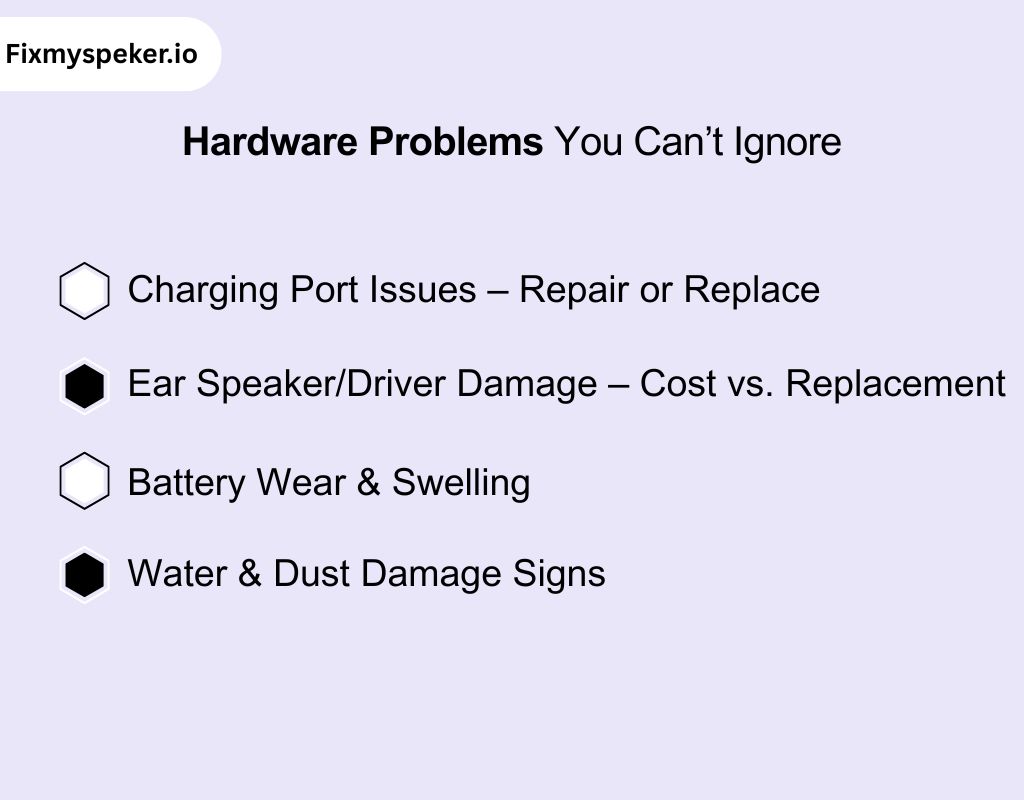
Some Bluetooth speaker issues go beyond software glitches or pairing errors. When problems involve physical components, it’s often necessary to repair my bluetooth speaker professionally. Ignoring these can lead to permanent damage or complete failure.
Charging Port Issues – Repair or Replace
A damaged or loose charging port is one of the most common hardware problems. If your speaker won’t charge or only works with a specific cable angle, it may require repair or replacement. Attempting DIY fixes without proper tools can worsen the damage.
Ear Speaker/Driver Damage – Cost vs. Replacement
If your audio sounds distorted, muffled, or crackly, the internal ear speaker or driver might be damaged. Professional repair can restore sound, but in some cases, replacement may be more cost-effective. Assessing the damage early saves time and money.
Battery Wear & Swelling
Over time, batteries lose capacity or swell, which can cause safety risks and affect performance. Swollen batteries should never be used and require immediate professional attention.
Water & Dust Damage Signs
Moisture, spills, or dust accumulation can corrode internal components, leading to permanent malfunctions. Look for rust, unusual sounds, or connectivity issues as early warning signs.
Addressing these hardware problems promptly ensures long-lasting performance. For any of these issues, it’s best to rely on experts who know how to fix my bluetooth speaker charging port, repair internal drivers, or handle battery issues safely.
Who Can Repair Your Bluetooth Speaker?
If you’ve ever wondered who can fix my bluetooth speaker, you know it’s not always easy to choose between local shops, authorized service centers, or online repair platforms. Here’s a clear guide to help you decide.
Local Shops vs. Authorized Service
- Local Shops: Convenient and often quick, but quality can vary. Some may lack proper tools or expertise, leading to temporary fixes.
- Authorized Service Centers: Official repair services guarantee genuine parts and trained technicians. They’re reliable but may take longer and cost more.
Online Repair Booking – Easy, Hassle-Free
Several online tools allow you to book repairs online without leaving home. You can:
- Schedule pickup or mail-in repair.
- Get a clear diagnosis and upfront pricing.
- Track progress from start to finish.
This is perfect if you’re asking where can i fix my bluetooth speaker combining convenience with professional quality.
When Professional Repair is Smarter than DIY
Some problems such as damaged drivers, charging ports, or battery issues — are risky to fix at home. Professional repair ensures safety, long-lasting performance, and peace of mind.
Choosing the right repair option saves frustration and ensures your Bluetooth speaker works like new.
Advanced Audio Troubleshooting for Distorted Sound

Distorted audio requires more than basic fixes. These advanced steps help pinpoint the cause and restore clear sound.
Identify Interference Sources
Crackling and buzzing often occur when other Bluetooth devices, Wi-Fi networks, or nearby electronics interfere with your speaker. To troubleshoot:
- Move your speaker and device closer together
- Turn off other nearby Bluetooth devices
- Test in a different environment to isolate interference
Check for Codec Mismatches
Audio quality drops can result from incompatible Bluetooth codecs between your speaker and device. To fix:
- Verify the supported codecs (SBC, AAC, aptX, etc.)
- Switch your device to a compatible codec
- Re-pair the speaker to ensure the codec is applied
Optimize Volume & Signal Levels
Distortion often comes from extreme volume settings:
- Lower the device and speaker volumes to mid-level
- Avoid boosting equalizer settings excessively
- Test with multiple apps to rule out software-specific distortion
Diagnose Hardware Problems
If crackling, buzzing, or muffled audio persists:
- The internal drivers or speaker components may be failing
- Physical damage, water exposure, or dust buildup can worsen distortion
- Professional help is recommended to repair my bluetooth speaker
Following these advanced troubleshooting steps addresses most causes of distorted sound, letting you restore high-quality audio and determine when hardware repair is necessary.
Reset Your Bluetooth Speaker the Right Way
Resetting your speaker can solve hidden glitches and restore proper audio performance. Knowing how to reset bluetooth sound correctly ensures you fix issues safely without risking data or settings.
How Resetting Clears Invisible Bugs
Many audio problems such as crackling, sudden disconnections, or unresponsive controls are caused by temporary software glitches. A proper reset clears these invisible bugs, refreshes the Bluetooth connection, and often restores normal sound.
Reset vs. Factory Reset – What’s the Difference?
- Standard Reset: Refreshes the speaker’s internal system without deleting saved devices or custom settings. This is usually enough for most issues.
- Factory Reset: Returns the speaker to original settings, removing all paired devices, EQ adjustments, and updates. Use this only if problems persist after a standard reset.
Why Reset First Before Repair
Performing a reset can save time and money. Many issues that seem like hardware problems are actually software glitches that a reset can fix, avoiding unnecessary professional repairs.
Resetting correctly is a simple, effective step in troubleshooting your speaker and should always be tried before moving on to advanced fixes or professional service.
When DIY Isn’t Enough – Let Experts Fix It
Sometimes, no matter how many resets, volume adjustments, or troubleshooting tricks you try, your speaker still isn’t performing at its best. At this point, it’s smart to know who can fix my bluetooth speaker, or where can I fix my bluetooth speaker near me. Because some issues like internal hardware damage or severe water exposure require professional attention.
When to Stop Trying Endless Fixes
Persistent problems such as distorted sound, unresponsive drivers, or faulty charging ports indicate that DIY methods won’t solve the issue. Continuing to experiment could worsen the damage.
How Our Tool Can Help
Before rushing to a repair shop, you can try our tool which designed to:
- Eject water safely from phone speakers to prevent damage.
- Restore clarity and volume by using carefully calibrated sound waves that push out residual moisture.
- Test and troubleshoot speaker output to check if sound issues are software or hardware-related.
The tool is safe for most smartphones (iPhone and Android), requires no app download, and can help you quickly determine whether your speaker problem is minor or needs professional repair.
Our Tool vs DIY Methods for Bluetooth Speakers
DIY approaches like brushes or cotton swabs can leave dust behind or even damage delicate speaker components. Our tool, on the other hand, uses precise sound frequencies to vibrate and remove trapped dust and moisture safely.
| Feature | Fix My Speakers (Our Tool) | DIY Manual Cleaning |
| Method | Sound waves create vibrations to eject dust/water | Brushes, cotton swabs, or compressed air |
| Safety | Gentle, no risk to internal parts | Risk of damaging mesh or circuits |
| Effectiveness | Quickly removes most debris | Often incomplete; may push dust deeper |
| Ease of Use | Browser-based, no installation | Requires tools and careful handling |
| Consistency | Repeatable results every time | Results vary widely |
| Device Compatibility | Most smartphones and Bluetooth speakers | Tool-dependent; limited fit |
| Cost | Free | Tools cost money; repair risk |
Why Choose Our Smart Repair Solution
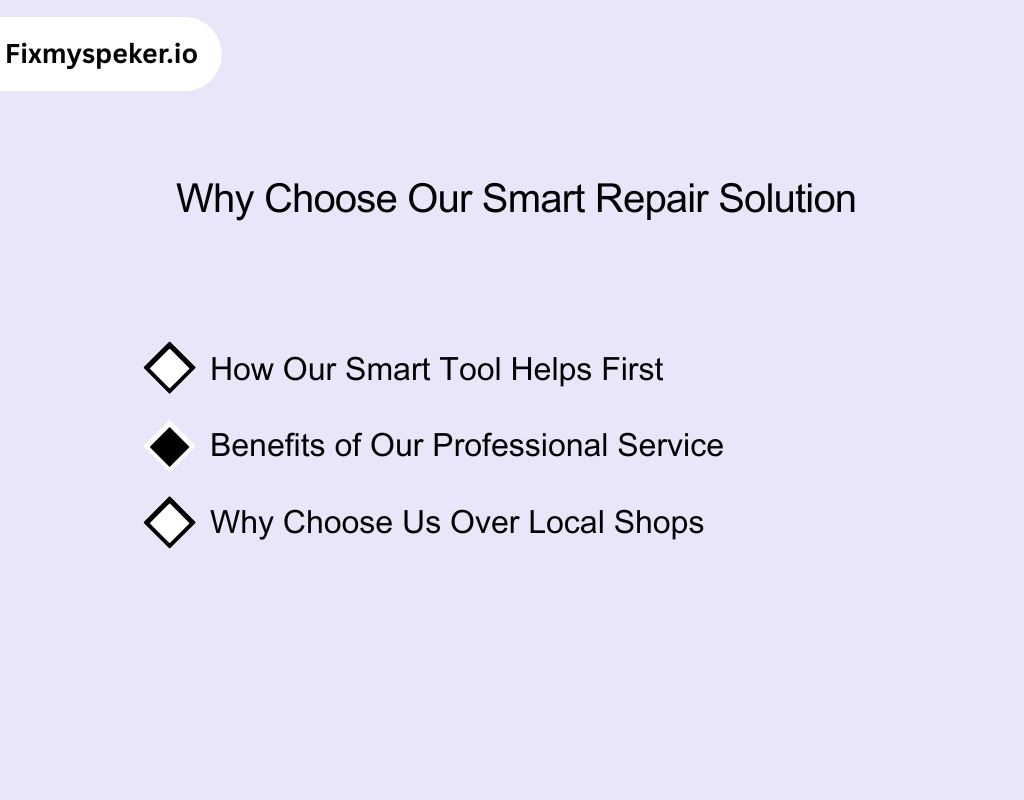
When your Bluetooth speaker isn’t performing at its best, knowing when to rely on expert help makes all the difference. While some minor glitches can be resolved quickly, a proper fix my bluetooth speaker service ensures long-term performance and reliability.
How Our Smart Tool Helps First
Before going for professional repair, we provide a safe and effective way to:
- Remove moisture or debris that may be affecting your speaker’s performance
- Test and diagnose speaker functionality to determine whether issues are minor or require professional attention
- Restore clarity and volume to prevent long-term damage and maintain sound quality
This quick, browser-based process works for most smartphones, helping you identify problems efficiently before moving to expert repair.
Benefits of Our Professional Service
While our tool addresses minor issues, our full fix my bluetooth speaker service ensures:
- Faster, accurate diagnosis for any hardware or software problems
- Transparent pricing so you only pay for what’s needed
- Expert handling of internal components, drivers, and charging ports
Why Choose Us Over Local Shops
- Local shops may offer quick fixes but can vary widely in skill and equipment.
- Our team provides consistent, high-quality repairs with trained technicians.
- Combining our preliminary diagnostic process with expert repair ensures your speaker is fully restored without unnecessary trial and error.
By starting with our quick diagnostic steps and following up with professional repair when needed, you get convenience, speed, and peace of mind- all in one solution.
Tips for Better Results Using Fix My Speakers
To get the best results from Fix My Speaker on your Bluetooth speaker, follow these tips.
- Use Maximum Volume: Make sure your speaker’s volume is turned up fully. The higher the volume, the more effective the sound waves are at pushing out trapped water.
- Position Your Speaker Properly: If your speaker can be tilted, face the speaker downwards so gravity helps the water drain. Avoid lying it flat on a surface while running the tool.
- Repeat if Necessary: One run may not remove all the water. Play the tone multiple times until the sound returns to normal clarity.
- Be Patient: Typically, 10–30 seconds is enough per cycle. If your speaker is still muffled, give it a few more runs instead of overdoing it in one go.
- Check for Salt or Sticky Liquids: If your speaker got wet with saltwater or sugary drinks, rinse (if water-resistant) with fresh water first before using Fix My Speakers. Salt and sugar can cause corrosion and reduce effectiveness.
- Avoid Speaker Damage Concerns: The tones are safe for most speakers, including Bluetooth devices. It’s like playing music at full volume—your speaker won’t get harmed.
- Test Your Device First: If you don’t hear sound, check your speaker’s volume, make sure it’s not muted, and confirm the speaker is working. You can also try headphones to verify the sound is playing.
- Dry Naturally Afterwards: After ejecting the water, let your device air-dry for a few minutes to ensure no residual moisture remains in internal components.
Conclusion
Taking the right steps to fix my bluetooth speaker helps maintain sound clarity, prevent hardware damage, and extend your device’s lifespan. While minor issues can often be resolved with simple troubleshooting, persistent problems may require expert repair.
Acting early stops small glitches from escalating and keeps your speaker performing at its best. By combining practical fixes with professional support when necessary, you can enjoy uninterrupted music, clear calls, and reliable audio, ensuring your Bluetooth speaker continues to deliver excellent performance for years.
Frequently Asked Questions
How to fix Bluetooth speaker problem?
Start by checking battery, volume, and connections. Restart your devices, re-pair Bluetooth, and test with multiple sources. Persistent issues may need professional repair to restore proper function.
Can Bluetooth speakers be repaired?
Yes. Hardware issues like damaged drivers, charging ports, or water exposure require professional service. Minor software glitches can often be fixed with resets or re-pairing.
How to fix Bluetooth audio sound?
Check for interference, adjust volume, and ensure Bluetooth codecs match your device. Restart and re-pair devices. Persistent distortion usually indicates hardware problems needing expert repair.
How to fix Bluetooth speaker crackling sound?
Crackling often comes from interference, low signal strength, or damaged components. Move closer to the source, re-pair, adjust volume, and if it persists, seek professional repair.
Why is my audio quality suddenly bad?
Sudden audio drops can result from interference, low battery, outdated firmware, or codec mismatch. Test different devices, reset Bluetooth, and consider expert repair if the problem continues.
How to reset Bluetooth sound?
Resetting clears temporary glitches and refreshes connections. A standard reset often fixes most issues, while a factory reset restores original settings if problems persist.