Fix My iPhone Speaker
iPhone Sound, Crystal Clear!
0%
MODE
The iPhone speaker is engineered for precision, balancing compact size with powerful audio output. Yet daily exposure to dust, moisture, and wear can degrade clarity over time.
When distortion, muffled tones, or weak call audio appear, it disrupts both communication and entertainment. Many users are stuck on how to fix my iPhone speaker.
Fortunately, multiple methods exist to address these problems. From hardware-safe cleaning routines to advanced online tools, you have practical ways to restore sound performance.
Tools like sound-based cleaners provide a non-invasive, cost-free solution. It offers quick results without the risks of manual repair.

Why Is My iPhone Speaker Not Working During Calls?
Your iPhone speaker can fail during calls for reasons that go beyond simple mistakes. Before moving to how do i fix my iPhone speaker, understanding these causes helps you pinpoint the real issue faster.

1. Software Bugs
System errors often appear after updates or heavy multitasking. These glitches disrupt call audio by muting voices, cutting sound unexpectedly, or creating distortion that interrupts conversations.
2. Volume and Silent Mode
The side switch may mute sounds even if you raised the volume. Low ringer settings or silent mode prevent the speaker from transmitting voices during active calls.
3. Bluetooth Interference
Active Bluetooth connections redirect sound away from your phone’s speaker. When paired with earbuds, car systems, or speakers, your iPhone routes call audio there instead.
4. Physical Damage
A drop or splash can harm the speaker’s delicate components. Cracked casings, or shock damage disrupt the audio circuit. It leaves the speaker unable to process the call sound.
5. Dust and Grime
Particles gather inside the grille over months of use. This buildup blocks sound waves, muffling voices or reducing clarity, so you barely hear callers through the earpiece.
6. Outdated iOS
Older iOS versions sometimes conflict with phone hardware. These mismatches trigger audio bugs. Your calls start sounding faint, unstable, or drop speaker output entirely.
Major Signs Your iPhone Speakers Need Cleaning
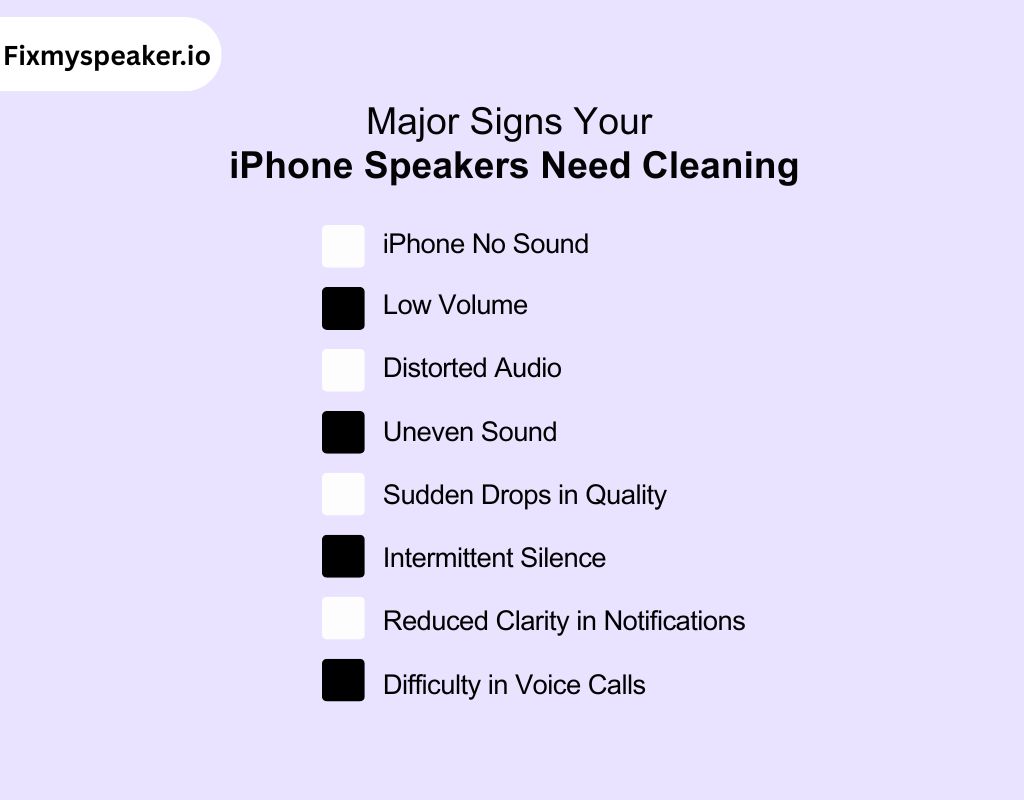
Your iPhone speakers provide subtle warnings before they fail. If your iPhone speaker not working, noticing these changes early helps you recognize that it is a dust issue.
1. iPhone No Sound
Voices, alerts, or music lose clarity and sound flat. Blocked speaker grilles prevent audio from carrying. Your calls and media are less distinct than usual, and you are struggling with no sound on iPhone.
2. Low Volume
Even at maximum settings, volume remains faint. For example, you might miss a ringtone in a busy café despite having the ringer fully raised.
3. Distorted Audio
Buzzing or crackling indicates interference with the diaphragm’s vibration. A common sign is bass-heavy tracks producing a rattling noise instead of clean low tones.
4. Uneven Sound
Audio balance shifts noticeably between speakers. This often becomes apparent during video playback in landscape mode, where one side sounds muted compared to the other.
5. Sudden Drops in Quality
Sound may shift from clear to muffled without any settings change. This inconsistency points to loose debris inside the grille, disrupting the speaker’s airflow.
6. Intermittent Silence
Calls or music cut out momentarily despite stable connections. The obstruction prevents steady vibration. It creates short gaps where no sound is produced.
7. Reduced Clarity in Notifications
System alerts lose their sharp tones. The muted quality of chimes or message pings signals a partial block of high-frequency output.
8. Difficulty in Voice Calls
Call audio sounds faint even in quiet environments. You may find yourself pressing the phone closer, yet words still lack the expected clarity.
What Is an iPhone Speaker Cleaner?
A mobile speaker cleaner is a digital tool designed to restore audio clarity using controlled sound patterns. These platforms typically generate specific audio frequencies that interact with particles trapped inside a phone’s speaker grilles.
Unlike simple playback apps, professional-grade cleaners are built around calibrated tones that target blockages caused by dust, lint, or compact debris. Many are available as browser-based utilities or lightweight applications, allowing you to trigger cleaning sequences directly from your device.
The purpose is diagnostic and corrective rather than entertainment, making them distinct from ordinary audio software.
For example, when fine dust accumulates inside the grille, a cleaner may release rapid vibration pulses that loosen particles and push them outward.
How Does Sound Vibration Clean an iPhone Speaker?
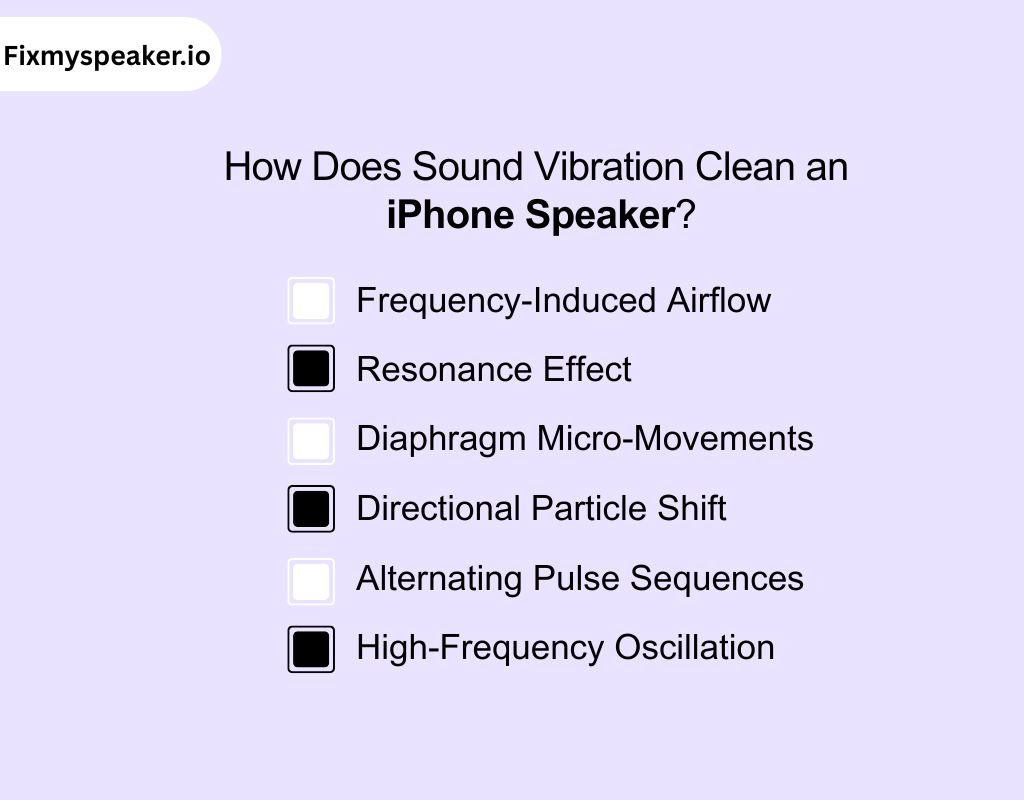
Sound-based cleaning works through precise physical interactions between audio frequencies and trapped particles. By targeting airflow and resonance, vibrations dislodge debris that reduces speaker clarity and performance.
1. Frequency-Induced Airflow
High-frequency tones generate strong air pressure waves. These waves push through the narrow grille openings, creating microbursts that lift loose particles clinging to the mesh.
2. Resonance Effect
When specific tones match the natural resonance of the speaker chamber, vibrations amplify. This resonance shakes out compacted dust that ordinary sound playback cannot disturb.
3. Diaphragm Micro-Movements
The speaker diaphragm moves rapidly during tone playback. These repeated micro-motions act like a physical brush. It helps loosen debris from the internal surfaces of the grille.
4. Directional Particle Shift
Sound vibrations cause particles to shift outward. As pressure builds near the grille’s exit points, debris is gradually pushed away from the diaphragm into open air.
5. Alternating Pulse Sequences
Cleaning tools often use pulsed tones instead of a steady sound. The sudden start-stop action increases turbulence, which breaks apart stubborn dust clusters lodged in tight gaps.
6. High-Frequency Oscillation
Certain ultrasonic-like tones generate oscillations too rapid for the ear to detect. These oscillations create subtle shaking forces that displace micro-level particles stuck deep in the mesh.
What Is Fix My Speaker?
Fix My Speaker is an online platform built to restore clarity in phone and portable speakers. Unlike standard audio playback, it generates controlled sound waves and vibration patterns designed to remove blockages.
The system runs entirely in a browser, requiring no installation, which makes it accessible across devices.
The tool cycles through a wide spectrum of tones, from low bass pulses to sharp treble oscillations to create precise air pressure changes inside the speaker chamber. These shifts move particles and debris that often cause muffled audio, distortion, or reduced volume.
In addition, its vibration mode applies mechanical resonance to shake out stubborn contaminants lodged deeper within the mesh.
By pairing acoustic cleaning with vibration, the tool addresses common challenges like dust buildup, distorted tones, and blocked output channels
How to Fix My iPhone Speaker Volume with the Fix My Speaker Tool?
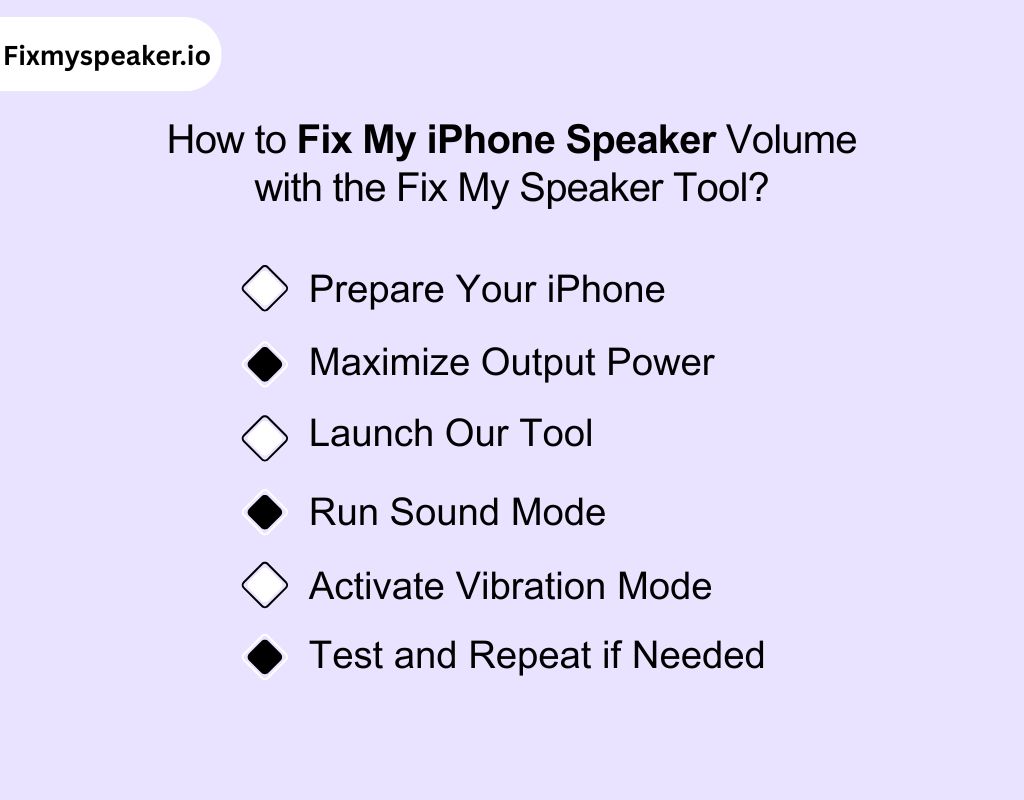
Our tool improves speaker output by using specialized tones and vibration cycles. If you are struggling with how can i fix my iPhone speaker, follow these steps to restore clear, balanced volume on your iPhone.
1) Prepare Your iPhone
Remove any protective case or cover that might block the speaker grille. Place the phone on a clean, flat surface. Use a dry, lint-free cloth to gently wipe around the speaker opening. This prevents loose dust from falling back in during cleaning.
2) Maximize Output Power
Go to Settings > Sounds & Haptics and slide the Ringer and Alerts bar to maximum. Use the side buttons to raise media volume all the way.
This gives the tool the power it needs to drive strong sound waves through the grille.
3) Launch Our Tool
Open Safari or any modern browser on your iPhone. Visit the official website of our tool. It runs directly in the browser, so you don’t need to download or install anything.
Keep the tab active throughout the process to avoid interruptions.
4) Run Sound Mode
Tap the Sound to begin the cleaning sequence. The tool plays a sweep of audio frequencies, from deep bass to high treble, that pushes out dust and particles. Let the cycle finish completely without touching the phone.
This stage restores clarity and raises perceived loudness.
5) Activate Vibration Mode
Switch to Vibrate once the sound cycle ends. This mode uses controlled resonance to shake loose stubborn debris lodged deeper in the mesh.
Keep the phone stable on the surface until the vibration sequence completes. Together with sound, this clears more than surface buildup.
6) Test and Repeat if Needed
After both modes, play a clean audio track such as a spoken voice or acoustic music. Compare clarity, balance, and loudness against before. If volume still feels weak, repeat both sound and vibration cycles two to three times for stronger results.
Advantages of Using our Tool to Fix My iPhone Speaker Bass

The tool goes beyond basic cleaning. Its frequency design and vibration patterns specifically restore bass output. You will get balanced, distortion-free sound without risky hardware.
1) Precision Bass Recovery
The tool uses calibrated low-frequency sweeps that target clogged bass pathways. This restores depth and punch, so your iPhone reproduces fuller low tones instead of flat, muted playback.
2) Dual-Mode Efficiency
Sound and vibration modes work together to remove debris affecting bass drivers. This combined process clears blockages at multiple depths, ensuring cleaner, richer bass response after each cycle.
3) Safe Waveform Engineering
Our tool runs specialized square and triangular waveforms instead of generic sine tones. These produce stronger diaphragm movement without overstressing components, protecting delicate iPhone bass drivers during cleaning.
4) Browser-Based Convenience
You run the tool instantly from Safari with no installation. This makes restoring bass quick and repeatable on any iPhone model without risking compatibility or storage issues.
5) Consistent Volume Preservation
By clearing airflow around the diaphragm, the tool prevents strain on bass drivers. Your iPhone maintains stable loudness at higher volumes without distortion creeping into low-end frequencies.
6) Brand-Specific Optimization
Our cleaning cycles are tuned to iPhone hardware design. This targeted calibration improves bass performance more effectively than generic tone apps, producing results aligned with Apple’s acoustic structure.
Is Using The iPhone speaker Dust Cleaning Sound Effective To Fix My iPhone Speaker?
Yes, using a dust cleaning sound can be effective for restoring iPhone speaker clarity.
The controlled frequencies produced by cleaning tools generate targeted air pressure inside the speaker chamber. This pressure helps shift fine particles and loosen debris that accumulates around the mesh and diaphragm.
Unlike random audio playback, these sounds are engineered to sweep across frequency ranges that directly influence particle movement.
When combined with vibration modes, the effect reaches deeper obstructions that ordinary sound cannot dislodge. Regular use keeps the sound path clear, preserves volume strength, and prevents distortion.
For iPhone users, this method offers a safe, repeatable way to maintain strong audio performance without physical intrusion.
Professional Cleaning vs DIY Manual Cleaning
Dust in iPhone speakers can range from loose surface lint to compact buildup deep inside the mesh. Light dust may clear with manual effort, but stubborn deposits often need advanced methods.
That’s where our tool gives a precise, non-contact solution to eject dust safely.
| Aspect | Fix My Speaker (Sound Cleaning) | DIY Manual Cleaning |
| Depth of Cleaning | Uses controlled sound vibrations to dislodge particles embedded in the mesh. Reaches areas unreachable with tools. | Limited to brushing visible dust. Internal debris often remains. |
| Consistency of Results | Delivers identical cleaning results every session regardless of user handling. | Dependent on user skill, technique, and pressure applied. |
| Risk Factor | 100% safe, non-contact process. No chance of scratching or damaging the mesh. | Higher risk of forcing dust deeper or tearing the grille during cleaning. |
| Time & Effort | Works in under a minute with a single tap. No extra supplies or preparation required. | Multiple steps with brushes, tape, or air cans. Requires patience and repetition. |
| Cost Over Time | Free to use online. No purchases or replacements required. | Ongoing expense for cleaning kits, compressed air, and tools. |
Other Pro Ways to Fix My iPhone Call Speaker
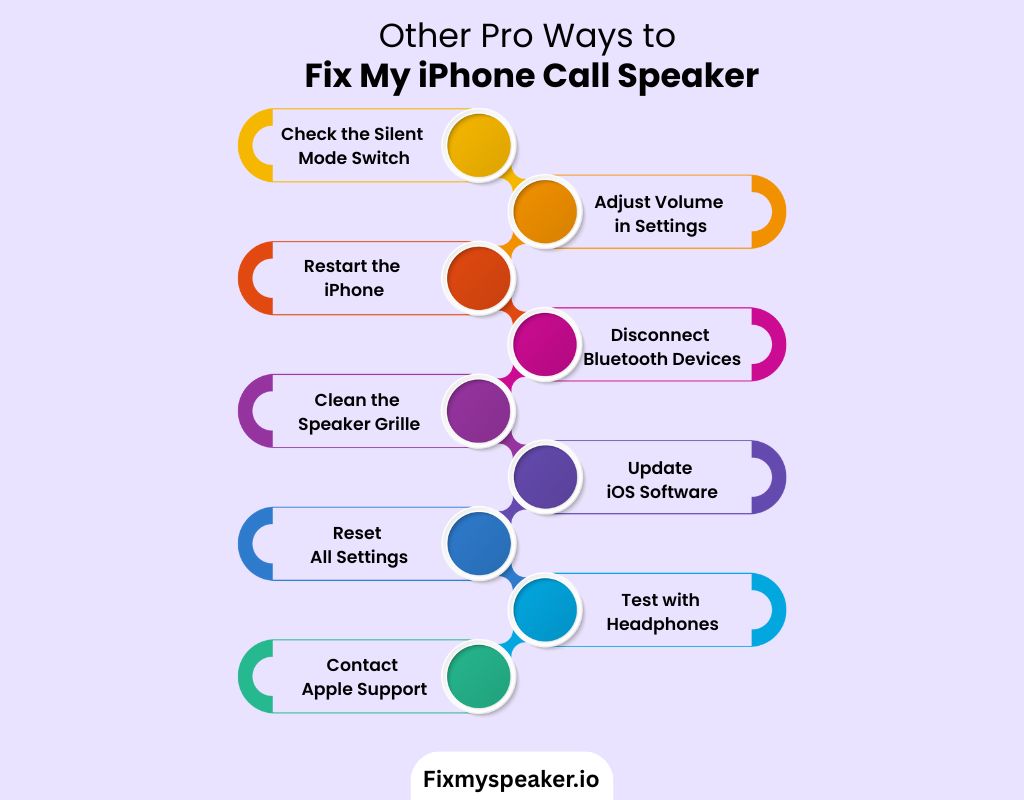
Most iPhone call speaker issues come from software misconfigurations or minor obstructions. Addressing these areas step by step often restores clear audio without the need for physical repair.
1) Check the Silent Mode Switch
The switch above your volume buttons mutes ringer and call sounds. When the orange line is visible, the device is in silent mode. Flip it back to ringer mode and wait for the on-screen notification.
Many users overlook this setting, yet it blocks sound output instantly, even if media plays normally.
2) Adjust Volume in Settings
Side buttons control volume, but glitches sometimes stop them from changing system levels. Open Settings > Sounds & Haptics and raise the Ringer and Alerts slider.
Testing with a call ensures the adjustment applies to voice output, not just media. This direct setting often restores balance when physical buttons seem unresponsive.
3) Restart the iPhone
Temporary memory conflicts can mute or distort speaker output. Press and hold the power and one volume button until the slider appears, then power down.
Wait at least 10 seconds before turning it on. Restarting clears cached errors and reloads the audio framework, which is often enough to restore clean call sound.
4) Disconnect Bluetooth Devices
When Bluetooth is active, audio often routes to paired accessories. Open Control Center and toggle Bluetooth off, or check Settings > Bluetooth for connected devices.
Unpairing reroutes sound back to the internal call speaker. This step resolves most cases where you can’t hear callers because the audio is redirected without you noticing.
5) Clean the Speaker Grille
The narrow earpiece collects lint and fine dust. Blockage reduces clarity even if the speaker itself works. Use a soft-bristled brush or apply compressed air in short bursts at an angle.
Avoid inserting sharp tools, which can damage the mesh. Keeping this opening clear is essential for natural voice reproduction.
6) Update iOS Software
Apple frequently addresses audio routing bugs in system updates. Go to Settings > General > Software Update and install the latest version. Updates refresh drivers and fix conflicts between apps and the speaker hardware.
Ignoring updates often leaves call audio problems unresolved, even when the speaker itself is fully functional.
7) Reset All Settings
When deep software conflicts remain, reset system preferences. Go to Settings > General > Reset > Reset All Settings. This clears Wi-Fi passwords, wallpapers, and audio configurations but preserves your personal files.
Resetting rebuilds default audio pathways and often restores call speaker performance when smaller fixes fail.
8) Test with Headphones
Connect wired EarPods or Bluetooth headphones and place a call. If audio comes through clearly, your speaker hardware is likely faulty. If not, the issue lies in the software.
This test narrows the problem source without disassembly, letting you decide whether to continue software fixes or seek repair.
9) Contact Apple Support
If none of these steps resolves the issue, the speaker hardware may be damaged. Book an appointment with Apple Support or an authorized repair provider.
They can run diagnostic checks to confirm coil alignment, diaphragm condition, or deeper circuitry faults that only professionals can address safely.
How to Fix My iPhone Speaker If It is Still Not Working Properly After Cleaning?
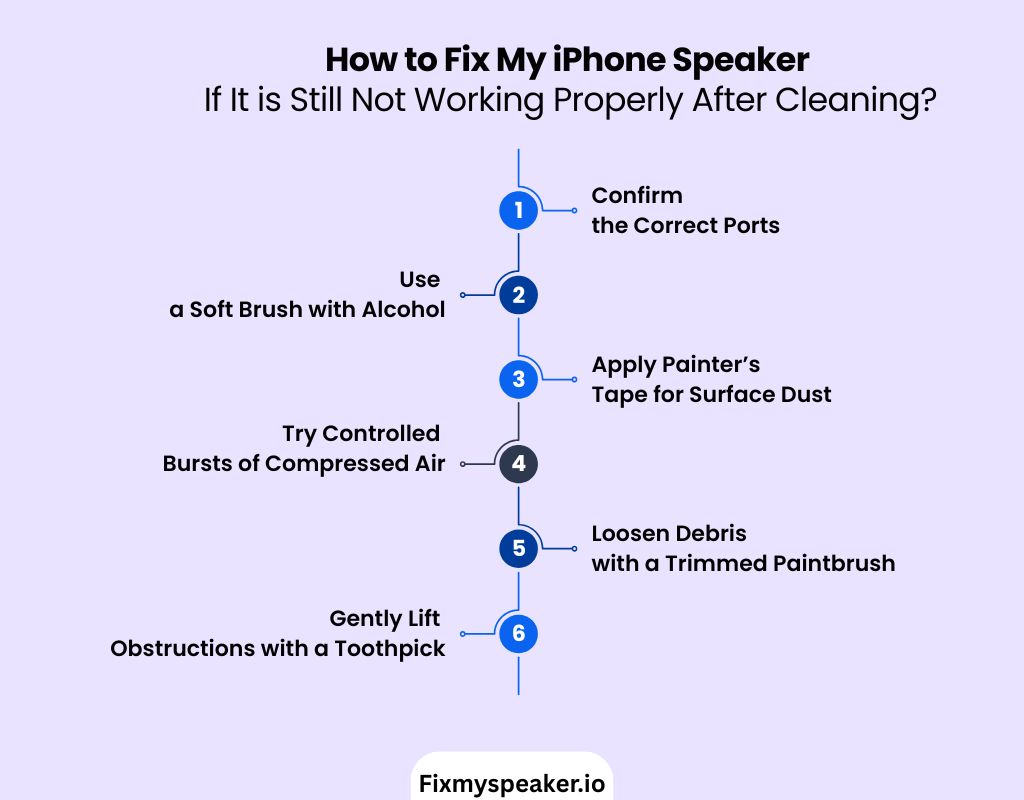
If sound issues remain, use these advanced processes to target debris more effectively. Each method works on a specific part of the speaker system.
1) Confirm the Correct Ports
Inspect the bottom edge of your iPhone. Focus cleaning on the right grille, which is the actual speaker. The left grille houses the microphone and should not be over-scrubbed.
2) Use a Soft Brush with Alcohol
Dip only the bristle tips of a toothbrush into isopropyl alcohol. Brush gently across the grille in short, light strokes. Allow the alcohol to evaporate fully before testing audio.
3) Apply Painter’s Tape for Surface Dust
Wrap painter’s tape around your fingertip with the sticky side out. Press the tape lightly onto the grille openings. Remove, discard, and repeat with fresh tape until the dust stops lifting.
4) Try Controlled Bursts of Compressed Air
Lay the phone face down on a cloth. Hold the nozzle at the recommended distance from the grille. Release short bursts of air, pausing between sprays to avoid moisture buildup.
5) Loosen Debris with a Trimmed Paintbrush
Trim the bristles of a fine paintbrush to half an inch. Sweep vertically across the speaker grille. Repeat several passes without applying downward force. Stop once no dust appears.
6) Gently Lift Obstructions with a Toothpick
Insert a wooden toothpick at a slight angle. Slide under trapped particles and lift upward. Keep movements shallow and sideways, never pushing into the mesh. Dispose of loosened debris carefully. Do not do this if you are not confident that you can do this without harming the hardware.
What Not to Do When There Is Dust in Your iPhone Speaker?
When cleaning your iPhone speaker, the wrong move can damage delicate parts. Here’s what you should avoid to keep your device safe.
- Don’t insert cotton swabs into the grille. You may think they fit, but loose fibers break off and lodge deeper. This only makes your iPhone speaker more clogged.
- Avoid using a vacuum directly on your phone. The suction feels powerful, but it can pull on soldered joints and shift fragile parts. Your iPhone’s internal speaker isn’t built for that stress.
- Never press sticky tape or glue against the mesh. You might lift some dust, but the residue traps even more. Over time, it blocks airflow and weakens your iPhone’s audio clarity.
- Don’t submerge your iPhone in moisture or soap. Even if your model is moisture-resistant, immersion corrodes internal contacts. You risk long-term sound failure rather than fixing muffled audio.
- Skip abrasive cloths or rough tools. Scratching the mesh may seem harmless, but it weakens protection. Once damaged, your iPhone attracts dust faster and loses sound quality.
- Never heat your speaker with hair dryers or hot air guns. You could warp the phone’s frame and soften adhesives. This creates gaps around the speaker and exposes it to even more dust.
When to Seek Professional Help to Fix My iPhone Call Speaker Dust
- Speaker still muffled after multiple rounds of sound-based cleaning and manual dust removal.
- Call audio cuts in and out, even with clear grills and updated software.
- Visible damage on the speaker mesh, such as dents or separation from the frame.
- Distortion is present across all frequencies, not just muffled tones.
- Earpiece speaker produces no sound despite proper cleaning and resets.
- Audio imbalance where one speaker outputs clearly, but the other remains weak.
In Closing
Restoring your iPhone speaker doesn’t always demand expensive repairs. With the right approach, you can fix my iPhone speaker issues like dust buildup, distorted tones, and reduced volume using safe methods.
Online sound-based tools stand out because they deliver quick, repeatable results without risking damage. Beyond cleaning, regular testing of call clarity and balanced playback helps you catch problems early.
Protecting your device from moisture, handling it carefully, and scheduling preventive maintenance keep the audio system strong. Clear sound preserves the full iPhone experience.
Frequently Asked Questions
How to fix my iPhone speaker not working?
You can start with safe cleaning methods such as using a sound-based tool, clearing dust from the grille, or updating iOS. If issues persist, professional repair may be required.
Why can’t I hear on my iPhone unless it’s on speaker?
This usually points to a faulty earpiece speaker or blocked grille. Software glitches and Bluetooth routing can also cause sound to play only in speakerphone mode.
How to fix a muffled iPhone speaker?
Clean the bottom grille with non-invasive methods like sound vibration or a soft brush. Muffled sound often comes from dust, lint, or partial debris blocking the mesh.
How much does it cost to fix my iPhone speaker?
Apple charges between $79–$149 for out-of-warranty iPhone speaker repairs, depending on the model. Independent repair shops may offer lower prices, but quality varies.
How do I know if I blew my iPhone speaker?
Signs include crackling, distortion at low volume, or complete silence during playback. If sound worsens as volume rises, the diaphragm may be permanently damaged.
Will Apple fix my speaker for free?
Yes, if your iPhone is still under AppleCare+ or its standard one-year warranty and the issue isn’t caused by accidental damage. Otherwise, repair costs apply.
How much to get iPhone speaker repaired?
Typical costs range from $79 to $149 at Apple. Third-party providers may charge less, but using Apple ensures genuine parts and official warranty coverage.
Does Geek Squad fix iPhones?
Yes. Geek Squad, through Best Buy, is an Apple Authorized Service Provider. They perform iPhone speaker diagnostics and repairs using Apple-certified parts and procedures.
How to fix my speaker iPhone 11?
For iPhone 11, try sound-based cleaning tools to eject dust or moisture. If distortion persists, update iOS and test Bluetooth settings before considering repair.
How to fix my speaker iPhone 12?
On iPhone 12, muffled audio often comes from debris in the bottom grille. Use a safe online sound cleaner, then retest the volume. Persistent issues may need Apple diagnostics.
How to fix my speaker iPhone 15?
The iPhone 15 uses sealed, moisture-resistant speakers. Avoid manual cleaning and use a calibrated sound-vibration tool. If the audio stays weak, book Apple service for hardware inspection.
How to fix my speaker iPhone 13 Pro Max?
With iPhone 13 Pro Max, focus on both the bottom grille and earpiece. Run a cleaning sound cycle, then check call clarity. Seek support if the imbalance remains.
How to fix my speaker iPhone 14 Pro Max?
For iPhone 14 Pro Max, use an online frequency-based tool to clear the mesh. Test playback in stereo mode. If one side stays faint, schedule AppleCare service.