Fix My Speaker Sound
Fix My Speaker, Hear It Clear!
0%
MODE

Dealing with distorted or muffled sound on your device can be incredibly frustrating. It’s a common issue caused by dust, moisture, or debris trapped inside the speaker. If you’re wondering how do I fix my speaker sound, our tool offers a simple and effective solution to restore clarity in minutes.
With just a few steps, you can use the tool to dislodge any obstructions and improve your device’s audio quality. It works online, so no downloads or technical expertise are required.
From here, you’ll learn how to use the tool effectively, understand its benefits, and discover tips for maintaining your speaker’s clarity. With just a few simple steps, you can enjoy better sound quality and extend the life of your device’s speaker.
Common Speaker Sound Problems
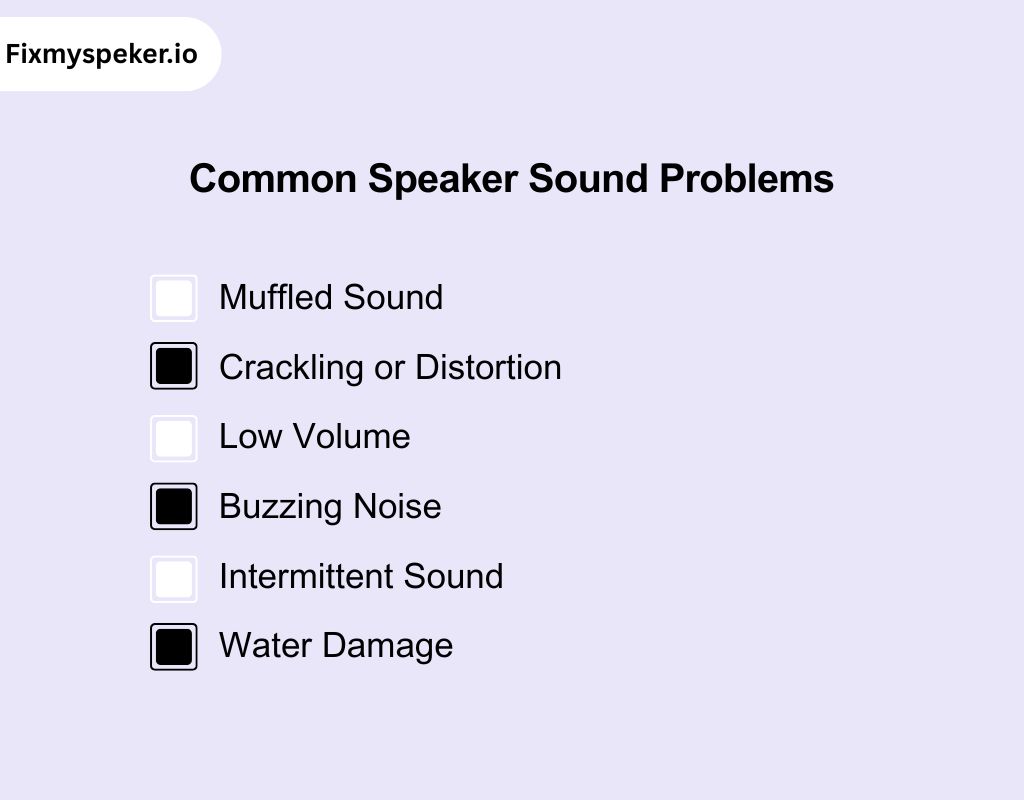
You know how frustrating it is when your audio just isn’t right. The speaker sound you’re getting isn’t what it used to be. Most of the time, these problems are pretty simple to solve. Let’s look at the most common issues you’re probably dealing with right now.
Muffled Sound
This is when your audio sounds like it’s coming from inside a box. You might be asking yourself, why does my speaker sound muffled? It’s usually caused by something blocking the sound output, like dust particles or other tiny debris. The sound waves can’t travel cleanly, which leads to poor audio quality.
Crackling or Distortion
When you hear a crackling noise, it’s a sure sign that something is messing with the sound. This can be caused by dirt or moisture interfering with the speaker’s vibrations. It makes your music or phone call sound rough and distorted.
Low Volume
Sometimes the sound is clear, but it’s just very quiet. If you’re wondering why is my speaker sound is very low, the problem might be a buildup of unwanted particles in the speaker’s tiny holes. These can block the sound from getting out, no matter how high you turn up the volume control.
Buzzing Noise
A constant buzzing can be incredibly annoying. You’re trying to enjoy a video, but all you hear is a loud buzz in the background. If you’re looking for a way to fix buzzing sound in speakers, it’s often related to a loose connection or a foreign object rattling around inside.
Intermittent Sound
This is when your audio keeps cutting in and out, or fading in a strange way. It’s a sign of a loose wire or debris that is partially blocking the speaker. One minute you have sound, and the next you don’t. This can be a very frustrating sound problem that’s hard to pin down.
Water Damage
If your speaker got wet, you might have to deal with moisture trapped inside. This will almost always lead to a muffled or distorted sound. The water droplets can change the way the speaker vibrates. Thankfully, this is a very common issue with a simple fix.
What is Fix My Speaker Sound?
If you’ve noticed your phone’s speaker sounding muffled or distorted, it could be due to trapped water or dust particles. Our web-based tool designed to help you restore your device’s audio clarity.
It uses specific sound frequencies that target and dislodge debris, dust, and moisture trapped inside the speaker. These particles can interfere with sound output and lead to poor audio performance.
The tool is especially helpful for resolving common issues like muffled sound, distortion, or buzzing sounds. These problems are often caused by dirt, dust particles, or even water damage trapped inside the speaker components.
Whether you’re dealing with a phone speaker, bluetooth speaker, or laptop speaker, our tool offers a quick, effective solution. This enhances your device’s sound quality and keeps it performing like new.
Key Features of Our Speaker Sound Fixing Tool
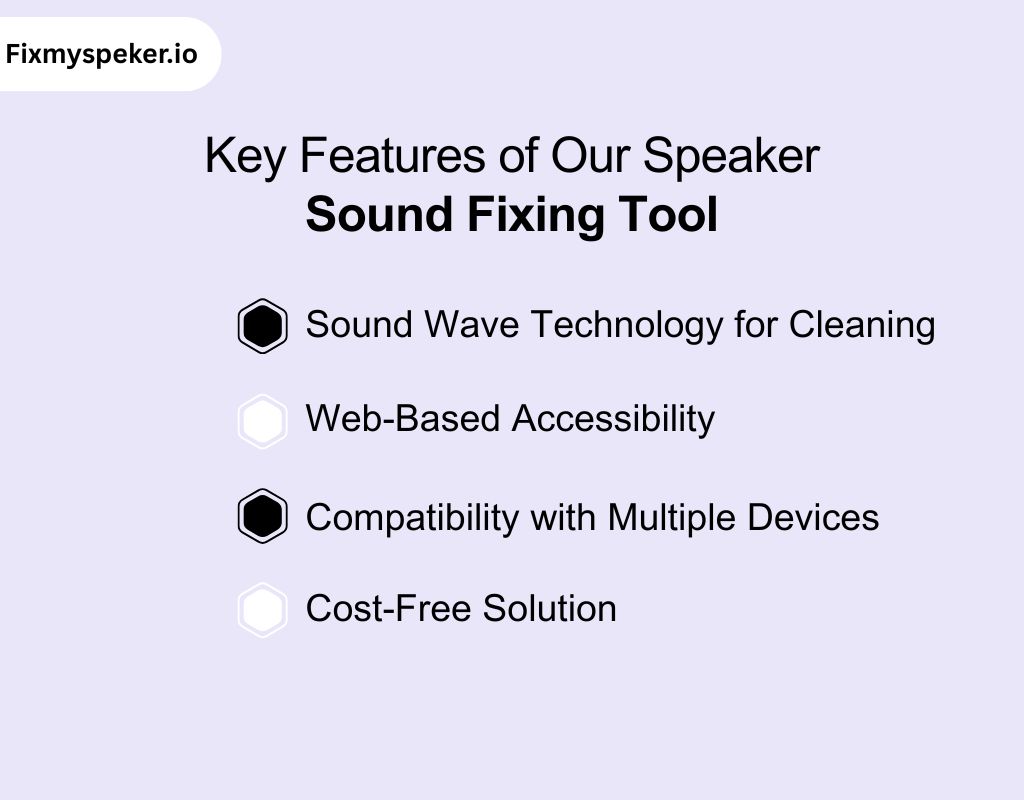
Our tool offers a simple and effective way to restore your device’s audio. Here are some key features to consider:
Sound Wave Technology for Cleaning
The tool uses sound frequencies to generate vibrations that help dislodge debris or moisture from your speaker. Whether you’re facing issues like how to fix my ear speaker sound or fix my speaker loud sound, this method clears the particles blocking audio flow. Thus restoring clarity and improving sound output.
Web-Based Accessibility
You can access the tool directly through your browser without the need for any downloads or installations. Simply visit the site to resolve the sound problems. This easy access ensures you can clean your device’s speakers anytime, whether on your phone, tablet, or computer.
Compatibility with Multiple Devices
Whether you need to fix your bluetooth speaker, phone speaker, or laptop speaker, this tool is designed to work with a variety of devices. It addresses issues like fix my speaker sound effect to improve overall audio quality and ensure a better listening experience.
Cost-Free Solution
You don’t need to spend money on repairs. This free tool helps you fix my speaker sound cc and other sound issues without the cost of professional services. It’s an efficient and budget-friendly way to restore your device’s speaker performance without extra charges.
How to Use Our Tool to Fix Speaker Sound on Different Devices
If you’re wondering how do I fix my speakers, our tool provides a simple solution. You don’t need a fix my speaker sound app download. Just follow the steps to restore your speaker’s clarity and performance easily.
How to Fix My Bluetooth Speaker Sound
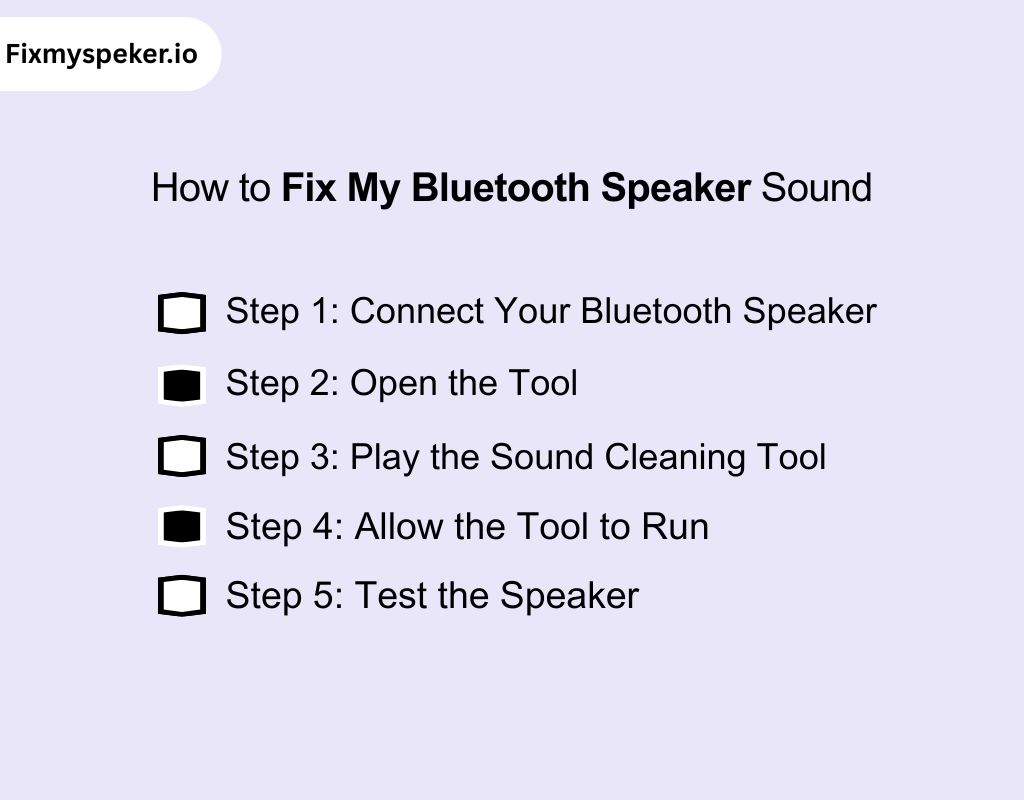
To fix your Bluetooth speaker sound, follow these steps:
Step 1: Connect Your Bluetooth Speaker
Ensure your Bluetooth speaker is connected to your device. Make sure it’s powered on and ready to play sound.
Step 2: Open the Tool
Go to our website on your mobile device or tablet using your web browser.
Step 3: Play the Sound Cleaning Tool
Click on the cleaning tool on the website. The tool will generate sound frequencies that help clear dust and moisture from the speaker.
Step 4: Allow the Tool to Run
Let the tool play for the recommended duration. This will help dislodge any debris and improve the sound quality.
Step 5: Test the Speaker
After the tool has finished, test your Bluetooth speaker by playing some audio. The sound should be clearer and more vibrant.
How to Fix My Call Speaker Sound on Phone
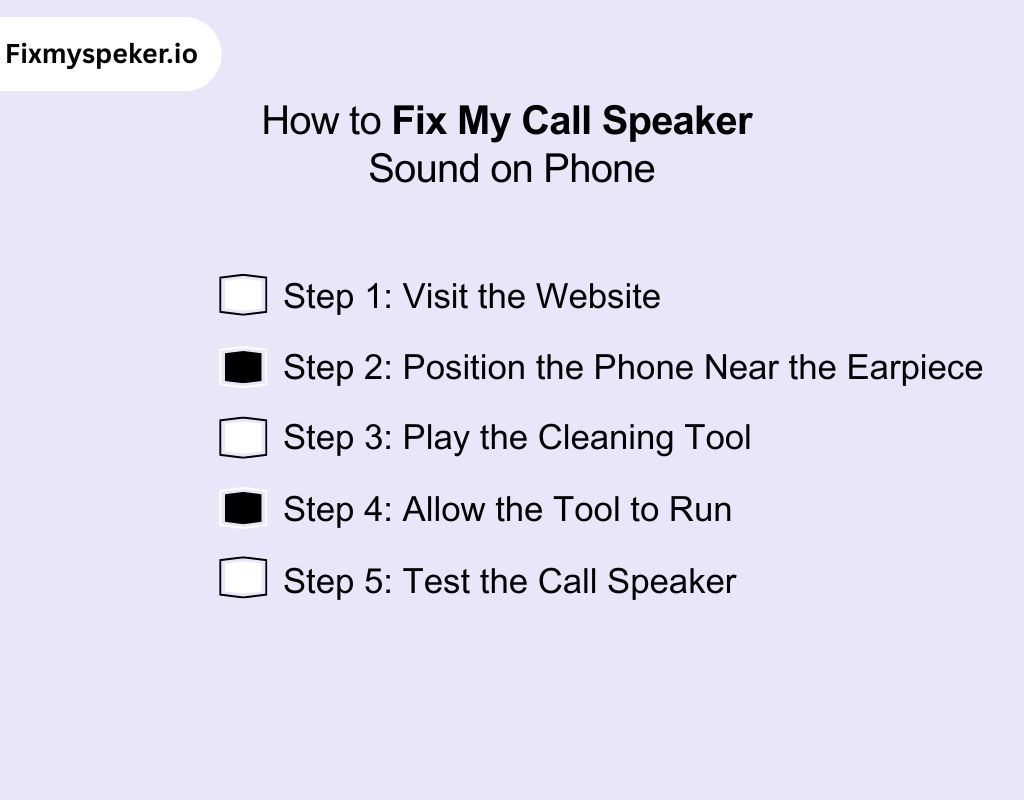
To fix my phone speaker sound, follow these steps:
Step 1: Visit the Website
Open the sound tool on your phone’s browser.
Step 2: Position the Phone Near the Earpiece
Hold the phone so that the earpiece is facing towards you. Make sure it’s not connected to any Bluetooth devices during this process.
Step 3: Play the Cleaning Tool
Play the sound cleaning tool. It will generate frequencies that target debris or moisture inside the phone’s speaker.
Step 4: Allow the Tool to Run
Let the sound frequencies run for the suggested time. This will help clear any particles blocking the sound.
Step 5: Test the Call Speaker
Once done, test your phone by making a call. The sound should be much clearer and improved.
How Do I Fix the Speaker Sound on My Computer
Follow these steps to fix sound issues with your computer’s speaker:
Step 1: Open our Website
Launch our sound tool in your browser on your computer.
Step 2: Adjust Your Audio Settings
Ensure that your computer’s volume is turned up to a moderate level and that the sound is not muted. If you’re experiencing speaker sound problem Windows 10, check your sound settings for any issues.
Step 3: Play the Sound Cleaning Tool
Click on the sound cleaning tool to start. The tool will emit frequencies that target any debris or moisture inside the speakers, helping to fix sound or audio problem in Windows 10.
Step 4: Let the Tool Run
Let the frequencies run for the recommended time to clear out any dust or moisture. This will help resolve fix sound issues Windows 11 as well.
Step 5: Test the Sound
After the process, test your computer’s speakers by playing a video or music.
How Do I Fix the Speaker Sound on My Laptop
To fix your laptop’s speaker sound, follow these steps:
Step 1: Open the Tool
Visit our speaker fixing tool on your laptop’s browser.
Step 2: Close Unnecessary Applications
Close any unnecessary applications to avoid interruptions during the sound fixing process.
Step 3: Play the Cleaning Tool
Click on the cleaning tool. The tool will emit specific sound frequencies to help dislodge moisture and dust from the laptop speakers.
Step 4: Let It Run
Allow the tool to play for the recommended duration, ensuring the frequencies clear out any blockage.
Step 5: Check the Sound Quality
Once finished, test the speakers on your laptop. The sound should be clearer, and any fix my speaker sound laptop speaker issues should be resolved.
How Does Our Tool Works to Fix Sound Issues
If you’re experiencing issues with speaker sound, here’s how our tool works to fix it, even for how to fix broken sound speakers.
Step 1: Sound Frequency Emission
Our tool works by emitting specific sound frequencies that target and vibrate the speaker components. These frequencies help dislodge dust, moisture, and debris that can interfere with sound output. By vibrating these particles loose, the tool restores clarity to the audio, improving my speaker sound.
Step 2: Vibration Process to Dislodge Debris
Once the sound frequencies are activated, they cause vibrations within the speaker’s housing. This helps dislodge any trapped dust particles or moisture from inside. The process clears the internal components, allowing the speaker to produce clear, high-quality audio once again.
Step 3: Simple Web-Based Operation
You don’t need to download any apps. Simply visit the website and start the tool directly in your browser. It’s designed to be user-friendly, so all you need to do is click a button to begin the sound cleaning process. Thus making it accessible for any device.
Step 4: Quick and Efficient Sound Restoration
Our tool works quickly, with frequencies running for a set period. During this time, it targets the internal speaker components to clear any blockages. After the tool has run its course, you’ll notice a significant improvement in speaker sound without the need for complex repairs.
Step 5: Safe for All Devices
Whether it’s your phone, tablet, or computer, the tool works safely across a variety of devices. It doesn’t require any technical expertise to operate. Thus making it a convenient and effective solution for restoring clear audio from your speakers without any risk of damage.
Why Our Tool is Better than Others: A Modern Approach to Fixing Audio
If you’re asking, “How can I fix my sound?” Our tool provides a simple and efficient way to improve your device’s audio performance. Here’s a side-by-side comparison highlighting the best features of our tool that other regular tools lack:
| Feature | Our Tool | Other Tools |
| Sound Frequency Technology | Uses precise frequencies to dislodge moisture and debris, restoring clarity. | Basic methods like vibration or air blowing, less effective. |
| Device Compatibility | Works on phones, Bluetooth, laptops, and more. | Limited to specific devices or brands. |
| Web-Based Access | No downloads required, works directly in your browser. | Sometimes Require app downloads or extra software. |
| Speed and Efficiency | Fast, fixes sound issues in minutes. | Slower, often needs multiple attempts. |
| Free and Easy to Use | Free, with a user-friendly interface. | Often has hidden fees or complex setups. |
| Data Privacy and Security | Operates directly in your browser, no data uploads required, ensuring full privacy. | Often requires file uploads or additional permissions, raising privacy concerns. |
| Real-Time Audio Enhancement | Provides real-time feedback, allowing you to hear improvements as they happen. | No real-time feedback, leaving you uncertain about progress. |
Tips and Troubleshooting: Getting the Best Results
If you’re experiencing sound issues, follow these troubleshooting tips to restore your speaker’s clarity. These simple steps will help you fix your speaker sound problems.
Regularly Clean Your Speaker
To get the best sound quality, clean your speaker regularly. Dust and moisture can build up, causing muffled sound. Use a soft cloth or brush to remove dust, or run the sound cleaning tool periodically to keep the speaker clear and functioning properly. This helps fix my upper speaker sound and improve audio clarity.
Adjust Your Device Settings
Sometimes, the issue may not be with the speaker itself but with the device settings. Ensure the volume is appropriately set, and check if any audio enhancements or sound settings are enabled. Adjusting these settings can help fix my speaker different sound and prevent distorted audio.
Keep Your Device Free from Moisture
Water or humidity can severely affect your speaker’s performance. To avoid damage, never expose your device to water or excessive moisture. If your speaker has already been exposed, use our tool to eject moisture and clear any blockages to restore your device’s sound quality.
Reboot Your Device
If you experience sound issues, a simple reboot can help. Restart your device to refresh all system processes, including sound-related settings. This often resolves minor glitches that could be causing low volume or distortion, allowing the speaker to perform at its best.
Use the Tool Correctly
To get the best results, make sure you follow the recommended instructions when using the sound fixing tool. Position your device correctly and let the tool run for the full duration. This ensures all dust and debris are cleared, restoring optimal audio performance.
How to Prevent Future Speaker Sound Issues
If you want to avoid future speaker sound issues, follow these tips to keep your device’s audio quality clear and crisp. This includes methods to fix my ear speaker cleaner sound and maintain optimal performance.
Store Your Device Properly
When not in use, store your device in a clean, dry area. Avoid leaving it in places where dust or moisture could accumulate. Keeping your device in a safe, cool place ensures the speaker stays protected from future issues, helping to maintain clear sound quality.
Use a Speaker Protector
Consider using a speaker cover or case for extra protection. This can shield your device from dust, moisture, and physical damage. By using a protector, you’ll keep your speaker safe from external elements, helping prevent any long-term sound issues or distortions.
Regularly Update Software
Keep your device’s software updated to ensure it’s running smoothly. Software updates can improve sound performance by fixing bugs that may affect audio quality. Enabling automatic updates will help you stay on top of necessary changes and prevent any software-related sound issues.
Avoid Excessive Exposure to External Noise
If you use your device in noisy environments, avoid placing it near loud, vibrating surfaces. This can help keep your speaker free from unwanted vibrations that may cause distortion. Using headphones in noisy areas can also preserve your device’s speaker quality.
Keep the Speaker Grill Unobstructed
Ensure that the speaker grill remains clear of any obstructions. If you use a case, make sure it doesn’t cover the speaker area. Regularly check to ensure the speaker openings are free of dust and debris to maintain high-quality sound output.
Challenges to Be Aware of When Fixing Speaker Sound with Our Tool
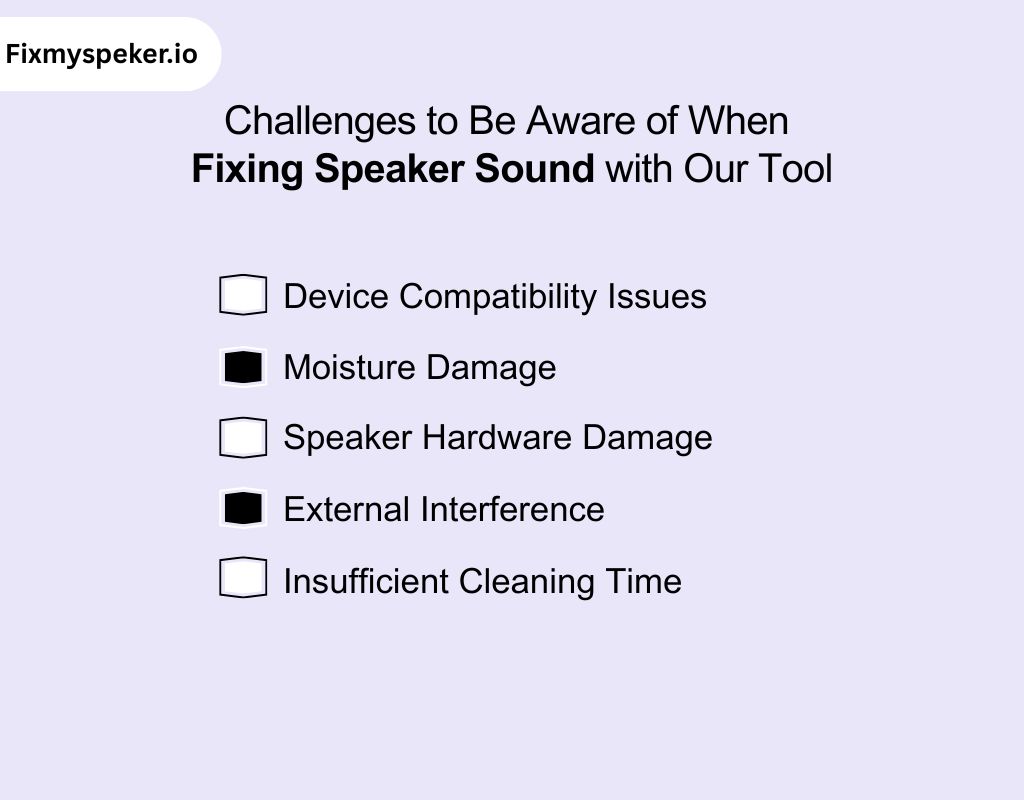
If you’re using the tool to fix your speaker sound, there are a few challenges to keep in mind. Here are some common issues you might face:
Device Compatibility Issues
While our tool works on most devices, some older models may experience compatibility issues. If you’re unable to use the tool, make sure your device supports web-based tools. Outdated software or settings could affect fix my speaker dust cleaning sound on my phone.
Moisture Damage
If your device has experienced significant water exposure, the tool may not fix all sound problems. In such cases, fix my speaker crackling sound may persist even after using the tool. Moisture damage can affect internal components, requiring professional repair for complete restoration.
Speaker Hardware Damage
Our tool works best for cleaning and clearing debris, but it can’t repair damaged hardware. If your speaker has physical damage or is severely worn, it may still experience fix my speaker sound and vibration issues. You may need to consider hardware replacement in such cases.
External Interference
Sometimes, external factors like background noise or other electronic interference can affect your speaker’s performance. Ensure your device is in a quiet, stable environment before using the tool to ensure optimal results when trying to clear out any sound problems.
Insufficient Cleaning Time
For the best results, it’s important to let the tool run for the full recommended duration. Rushing the process might not completely clear out debris, leaving you with subpar results. Be patient, and allow the tool to work effectively for fixing speaker sound problems.
Conclusion
In conclusion, if you’re struggling with poor audio quality, our tool is here to help you fix my speaker sound easily and effectively. By using it, you can quickly restore clarity and eliminate common issues like muffled sound, crackling, or low volume.
Regular use of the tool will keep your device’s speaker functioning properly, saving you from costly repairs. With its simple, web-based process, you can enjoy better audio without any hassle.
Frequently Asked Question
How do I reset audio speaker?
To reset your audio speaker, turn it off and hold the reset button (if available) for 10–15 seconds. Alternatively, disconnect and reconnect the device or refer to the manufacturer’s instructions for a complete reset process.
If the reset button is not available, you need to look for instruction for that specific model.
How do I unclog my speaker?
To unclog your speaker, use a soft brush or compressed air to remove dust and debris from the speaker grill. If moisture is the issue, use a moisture-removal tool like ours to help clear the internal components.
How to clean the inside of a speaker?
To clean the inside of a speaker, turn it off and gently use a soft cloth or cotton swab to remove dust. Compressed air can also help dislodge particles. Always avoid moisture inside the speaker components.
How can I make my speakers louder again?
If your speaker is too quiet, check the volume settings and ensure it’s not muted. You can also clear out any debris or moisture that may block the sound, or adjust equalizer settings to boost the volume.
How to clean a speaker cone?
To clean a speaker cone, gently use a soft brush or a damp cloth to wipe away dust. Avoid using excess water or pressure, as this can damage the delicate parts of the cone and affect sound quality.
How to test if a speaker is bad?
To test if a speaker is bad, connect it to a different device and play audio. If there’s no sound or distortion persists, check the speaker for physical damage. Alternatively, use a multimeter to test the speaker’s electrical components.
How much to fix a blown speaker?
The cost to fix a blown speaker can range from $30 to $150, depending on the brand and model. Professional repair services may charge more. Alternatively, using our tool is a cost-effective solution for common speaker issues.
How to fix a distorted speaker?
To fix a distorted speaker, check for obstructions or moisture. Use our tool to clear dust or water from the speaker. If the distortion persists, check your device’s audio settings or consider replacing damaged components.