Fix My Speaker Android
Android Sound, Fixed Fast!
0%
MODE
Nothing’s more annoying than when your Android speaker suddenly goes quiet, crackles, or sounds muffled. You paid for a smartphone, not a pocket radio.
That’s where Fix My Speaker Android comes in. It’s built to tackle the common sound problems android users face.
From trapped dust and accidental water damage to software glitches that mess with audio settings, the right fix can bring your speaker back to life. Don’t let weak sound hold you back when your Android can perform better.

Why Your Android Speaker Might Be Malfunctioning
Experiencing poor sound or call issues can signal an android speaker problem. Understanding how to fix my speaker problem android helps you quickly identify whether it’s a software glitch or a hardware concern.
Software Glitches That Affect Sound
Many audio issues are caused by software rather than hardware.
- Restart your device to clear temporary glitches.
- Check for system updates that may improve audio performance.
- Reset audio settings or Bluetooth connections if necessary.
Hardware Issues: Dust, Moisture, and Wear
Physical damage or buildup can also cause speaker problems. Using proper techniques to fix my speaker dust cleaning android and addressing damaged components like fix my microphone speaker android ensures long-term performance:
- Dust accumulation can muffle sound
- Moisture or liquid exposure may cause temporary or permanent damage
- Worn or damaged speaker components reduce audio clarity
Pro Tip: “Quickly identify software issues by restarting your phone before diving into cleaning or repair.”
Key Features of Our Tool for Android
Water entering your phone’s speaker can muffle sound and potentially cause long-term damage. Fix My Speaker offers a fast, safe solution to eject water and restore your phone’s original sound quality.
Key Features:
- Quick Water Ejection: Removes water from your phone’s speakers in 10–30 seconds.
- Safe for Devices: Uses harmless sound waves that won’t damage your speakers.
- No App Required: Works directly from your web browser.
- Wide Compatibility: Supports Android and most smartphones with external speakers.
- Free to Use: Fully functional without any cost.
- Speaker Testing Tools: Includes stereo and surround sound checks for optimal performance.
- Prevents Long-Term Damage: Helps protect against corrosion and residual moisture.
- Easy to Use: One-click activation for a simple, practical solution.
How to Use Fix My Speaker to Fix Android Speakers
Fix My Speaker doesn’t rely on guesswork. It generates a precise sound frequency that forces water out of the speaker chamber, restoring clarity and volume efficiently. Here’s how to use it like a professional:
- Open the Tool in Your Browser: Navigate to Fix My Speaker’s website on your Android device. No app installation is required, so you can start the water ejection process immediately.
- Activate the Water Ejection Feature: Tap the designated button. The tool produces a carefully calibrated tone that resonates inside the speaker chamber, pushing trapped water out without damaging delicate components.
- Play the Sound for Maximum Effect: Run the tone for at least 10–30 seconds. But try to keep the full length. For persistent water, repeat the process at full volume. Keep your phone’s speaker facing downward to let gravity assist the ejection.
- Test Speaker Performance: Use the built-in stereo and surround sound tests to confirm that your speaker’s volume and clarity have returned to normal.
- Repeat if Needed: Some water may remain in hard-to-reach speaker cavities. Running multiple cycles ensures complete removal and prevents residual moisture from causing corrosion.
How to Fix My Call Speaker Dust
Suggested Image: Hands carefully cleaning a speaker using a mini brush and blower, showing gentle dust removal from the call speaker.
Dust buildup can seriously affect call quality. Using a proper call speaker cleaner ensures you maintain clear sound while avoiding damage. Learning to fix my call speaker dust android is the first step to keeping your device in top shape.
- Power off your Android phone
- Remove any phone case or screen protector covering the speaker
- Use a soft brush or blower to gently remove surface dust
- Test your speaker after cleaning to ensure sound is clear
Follow this process or you can use our tool on top of this page. We have already mentioned how to use our tool, so we will not talk about it here.
Tools You’ll Need
Using the right tools is essential to fix my speaker dust cleaning android and how fix your phone speaker without causing damage:
- Soft mini brush
- Compressed air canister
- Clean microfiber cloth
- Optional: small vacuum for electronics
Dos & Don’ts for Safe Cleaning
| Do | Don’t |
| Use soft brushes or compressed air | Use metal tools or liquids |
| Work gently and in a well-lit area | Apply excessive force on the speaker grille |
| Remove dust regularly before buildup | Clean while the phone is powered on |
Boosting Bass and Audio Quality on Your Android
A strong bass enhances your listening experience, but sometimes your device may underperform. Learning to fix my speaker bass on my phone android can restore rich, full sound.
Why Bass Might Be Weak
Several factors can reduce bass performance. Understanding these helps in troubleshooting and improving audio:
- Speaker Damage or Dust: Accumulated dust or minor physical damage can muffle sound.
- Software Glitches: Temporary android speaker problem or firmware issues can limit performance.
- Incorrect Output Settings: Some apps or device settings may lower bass levels unintentionally.
Knowing the root cause lets you take targeted action to fix my speaker android and restore proper sound quality.
EQ Settings and App Tweaks
Adjusting Equalizer (EQ) settings or using audio enhancement apps can significantly improve bass.
- Increase bass frequencies in system or app EQ settings.
- Test different music apps to see which preserves bass best.
- Enable audio enhancements or Dolby/Dirac sound options if available.
- Reboot your phone after tweaks to apply changes consistently.
Quick Tip: If bass is still low, dust in the speaker or internal damage may be the culprit. Consider cleaning or professional repair to restore full sound.
DIY Call Speaker Cleaning and Optimization
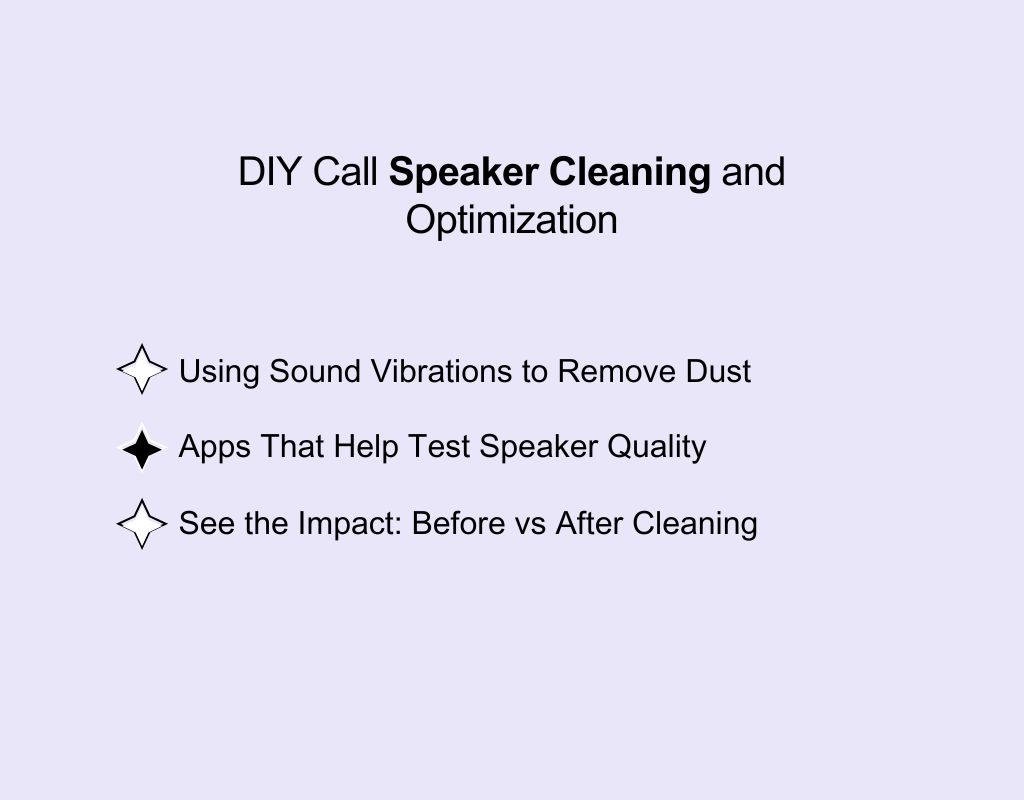
Keeping your call speaker in top condition is crucial. Using a call speaker cleaner and understanding how to fix my speaker problem android ensures clear calls and prevents long-term damage.
Using Sound Vibrations to Remove Dust
One of the most effective DIY methods is using sound vibrations. With the right technique, you can safely loosen dust inside the speaker. Here’s how to how to fix my speaker on my android phone using this approach:
- Play a high-frequency tone or vibration audio from your phone.
- Hold the device so the speaker is unobstructed.
- Repeat the process for 1–2 minutes to dislodge trapped dust.
- Test the call speaker after each attempt to see improvement.
Apps That Help Test Speaker Quality
After cleaning, it’s important to check if the speaker is performing well. Several apps can detect android speaker problem and verify improvements in your fix mobile speaker:
- Use sound test apps to measure frequency response and volume.
- Compare left and right channels if your device has stereo output.
- Identify distortions or low bass to determine if further cleaning or repair is needed.
See the Impact: Before vs After Cleaning
| Condition | Before Cleaning | After Cleaning | Improvement Notes |
| Call Clarity | Muffled | Clear | Dust removed, sound sharper |
| Volume | Low | Normal | Volume restored |
| Bass | Weak | Strong | Bass response improved |
| Noise | Crackling | Smooth | Minor static eliminated |
Pro Tip: Repeat sound vibration sessions periodically and test with apps to maintain optimal speaker performance.
Step-by-Step Troubleshooting for Common Android Speaker Issues
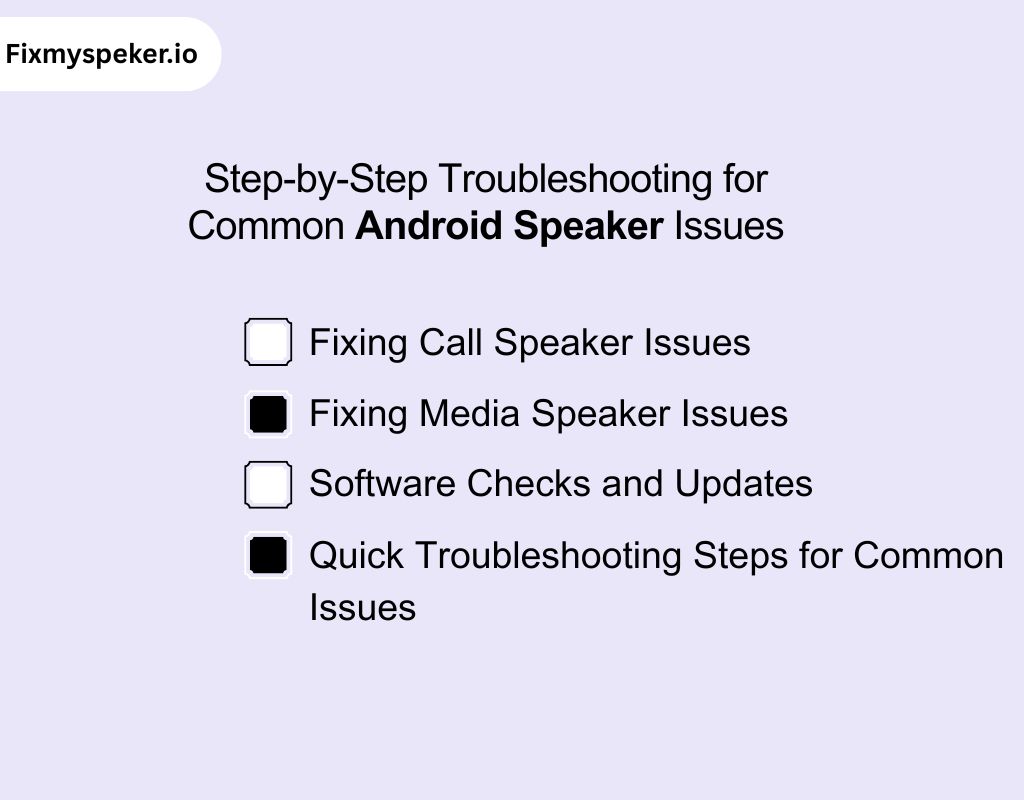
Experiencing issues with your Android audio? Knowing how to fix android speaker not working can save time and prevent further damage. Follow these steps to fix my speaker android efficiently.
Fixing Call Speaker Issues
Call clarity problems are common. To restore your phone’s fix my call speaker android functionality and adjust the fix my call speaker volume android, try these steps:
- Restart your phone to reset temporary glitches.
- Check if the volume is at maximum and not muted during calls.
- Remove any case or debris blocking the call speaker.
- Test using a different call app to rule out software conflicts.
Fixing Media Speaker Issues
If your music or video sound is distorted, low, or muffled, it may be time to fix my speaker bass and restore your fix mobile speaker performance:
- Play audio from multiple apps to identify if the issue is app-specific.
- Adjust equalizer settings to ensure bass and treble are balanced.
- Use safe vibration or sound apps to dislodge hidden dust particles.
- Test with headphones to confirm the problem is the device speaker.
Software Checks and Updates
Sometimes the android speaker problem isn’t physical but software-related. Learning how fix your phone speaker via system updates can resolve many issues:
- Ensure your Android OS is up to date.
- Clear Bluetooth or audio-related cache in settings.
- Boot your phone in safe mode to rule out conflicting apps.
- Reset audio settings to default if problems persist.
Quick Troubleshooting Steps for Common Issues
- Restart the phone
- Check volume and mute settings
- Clean the speaker grille safely
- Test multiple apps
- Update software and clear cache
- Seek professional help if the problem continues
Pro Tip: Regular software checks and minor cleaning prevent most android speaker problem issues from escalating.
Advanced Troubleshooting for Persistent Problems
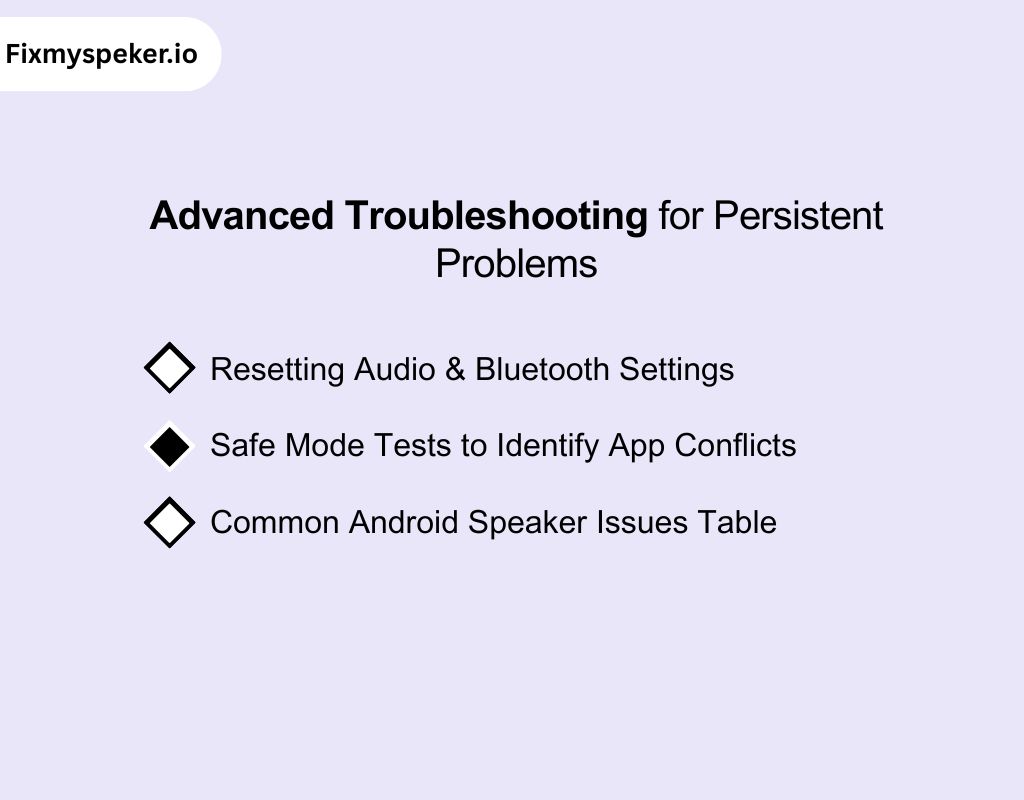
If basic cleaning and software checks don’t resolve your android speaker problem, advanced troubleshooting can help. Knowing how to fix my speaker on my android phone ensures you tackle persistent issues safely and efficiently.
Resetting Audio & Bluetooth Settings
Resetting can solve hidden glitches affecting both calls and media:
- Use your phone’s audio and Bluetooth reset options to clear cached connections.
- Update your device to the latest software to improve stability.
- Perform these steps to fix my speaker android and resolve issues like distorted sound or intermittent connectivity.
Safe Mode Tests to Identify App Conflicts
Some apps may interfere with audio output or speaker performance. Booting your phone in safe mode helps:
- Identify apps causing conflicts with your audio.
- Ensure your device’s default system audio functions properly.
- Apply fixes to fix my speaker problem android before reinstalling potentially problematic apps.
Common Android Speaker Issues Table
| Symptom | Probable Cause | Recommended Solution |
| Distorted call audio | App conflict or system glitch | Safe mode test & remove conflicting apps |
| Media sound low or muffled | Dust, debris, or speaker damage | Clean speaker & test with sound vibration apps |
| Intermittent Bluetooth audio | Corrupted cache/data | Reset audio & Bluetooth settings |
| No sound from speaker | Hardware failure | Professional inspection & repair |
Pro Tip: Always try software resets and safe mode tests before considering physical repairs to save time and prevent accidental damage.
When to Seek Professional Repair
Sometimes, no matter how many DIY fixes you try, your fix my speaker problem android issues persist. Knowing when to consult an expert ensures your device remains safe and performs optimally.
Professional repair can address problems that simple cleaning or software adjustments cannot, helping you fully fix my speaker android without risking further damage.
Local Shops vs Authorized Service Centers
Choosing the right service option is crucial:
- Local Shops: Convenient and often fast, ideal for minor repairs. Useful for fix my speaker ear android or basic fix my call speaker android issues. Quality may vary depending on technician skill.
- Authorized Service Centers: Provide certified technicians and genuine parts. Perfect for complex repairs or warranty-covered devices. Ensures reliable and long-lasting results.
Online Repair Booking
For added convenience, online repair services allow you to:
- Schedule pickups or mail-in repairs
- Receive clear diagnosis and upfront pricing
- Track repair progress from start to finish
These platforms help you address android speaker problem issues safely and let you how to fix my speaker on my android phone without leaving home.
Why Our Tool is the Best Choice for Android Speaker Repair
Our tool offers a simple, effective way to restore your device’s audio without any hardware repairs. Here’s what makes it stand out:
- Instant Water Removal: Specially calibrated sound waves push trapped water out of your speaker in seconds, bringing your phone’s audio back to life.
- Completely Safe: The tones are gentle on your device, just like playing music, so there’s no risk of damage.
- No App Required: Start the water-ejection process directly from your browser. No downloads, no clutter.
- Works on Most Devices: Compatible with Android phones and other smartphones with external speakers.
- Quick and Convenient: The process takes less than a minute and can be repeated if needed for stubborn moisture.
- Extra Sound Checks: Test stereo and surround sound to ensure your speakers are performing perfectly.
- Prevents Further Damage: Stops residual water from causing corrosion or muffled sound in the future.
- Simple One-Click Operation: Anyone can use it effortlessly. No technical skills required.
Fix My Speaker vs Traditional Speaker Repair
While there are several ways to fix it, Fix My Speaker offers a modern, safe, and hassle-free alternative. Here’s how it compares to manual or traditional methods:
| Feature | Fix My Speaker | Manual or Traditional Methods |
| Speed of Repair | Removes water in 10–30 seconds | Can take hours or even days to dry speakers naturally |
| Safety for Device | Uses safe sound waves, no risk to hardware | Risk of damage if tools or heat are used incorrectly |
| Ease of Use | One-click activation in browser, no technical skill needed | Requires knowledge, tools, and careful handling |
| Cost | Free | Often expensive if professional repair is needed |
| Effectiveness | Pushes out water efficiently, restores clarity | May not remove all moisture; risk of residual damage |
| Extra Features | Stereo & surround sound tests to ensure optimal performance | Usually no testing tools included |
| Convenience | Accessible anytime, anywhere with internet | Limited to physical repair locations or DIY at home |
| Long-Term Protection | Prevents corrosion and muffled sound | No proactive protection against residual moisture |
Preventive Tips for a Long-Lasting Speaker
Maintaining your speaker regularly can prevent frequent issues and ensure it lasts longer. Keeping my speaker clean and performing periodic fix my speaker dust cleaning android routines helps maintain optimal sound quality.
- Use a gentle call speaker cleaner regularly to remove dirt and prevent buildup.
- Avoid exposing your phone to humid environments or liquids, which can damage internal components over time.
- Excessive volume or improper EQ settings can strain your speaker. Adjust your audio carefully to protect internal components.
Tips for Better Results from Fix My Speaker for Android
Getting water out of your Android speaker isn’t just about playing a tone, it’s about letting the tool work with physics and your device. Here’s how to maximize FixMySpeakers.com’s effect:
- Let the Tone Resonate: The water-eject frequency is carefully tuned to make the speaker chamber vibrate. Hold your phone steady while it plays, and avoid touching the speaker vents during the process.
- Gravity Is Your Ally: Position your phone so the speaker points downwards. Water droplets respond to vibrations, but gravity accelerates their exit especially in the tiny crevices of Android speakers.
- Layer Your Sessions: Some devices trap more water due to design. Play the tone multiple times, letting your phone rest a few seconds between sessions. Each round pushes more moisture out.
- Case Awareness: Protective cases or port covers can dampen the tone’s effectiveness. Remove them before running the sound for the most efficient water ejection.
- Listen Closely: The tool isn’t just for clearing water. It also restores your speaker’s original clarity. After the session, test your speaker with the site’s sound checks to make sure every frequency is back.
- Repeat, Don’t Rush: Quick bursts work, but patient repetition ensures even stubborn droplets are expelled. Your Android’s sound performance depends on completing the process, not skipping steps.
Conclusion
Your Android isn’t broken, it just needs the right care. With Fix My Speaker Android, you can clear dust, reset audio settings, and restore crisp, powerful sound in minutes.
Whether you stream music, play games, or take endless calls, clear speakers make all the difference. Ignoring sound issues only makes them worse, but quick fixes today prevent expensive repairs tomorrow.
Keep your Android loud, clear, and reliable because good sound isn’t optional, it’s part of the smartphone experience you deserve.
Frequently Asked Questions
How do I fix the speaker on my Android phone?
Restart your phone first, then check volume and sound settings. If still unclear, clean the speaker mesh with a soft brush or air blower. For hardware damage, visit a repair center.
Is fix my speaker safe?
Yes, Fix My Speaker is generally safe since it uses sound frequencies to push out dust or water without opening your phone. However, avoid very high volume use for long durations to prevent speaker strain.
Can a phone speaker be fixed?
Yes, most phone speakers can be fixed depending on the issue. Dust or water can often be cleared with cleaning tools or apps. Severe damage, like hardware failure, usually requires professional repair or replacement.
Why is sound coming from the top of my phone?
Audio may route incorrectly due to software glitches. Restarting your device or resetting audio settings can fix my speaker android and resolve typical fix my speaker problem android routing issues.
How do I remove headphone mode?
Headphone mode often sticks due to software glitches or dirt in the headphone jack. Restart your phone, clean the jack gently, or plug in and remove headphones again. If unresolved, reset audio settings.